


Table of Contents
In the rapidly evolving landscape of remote communication, Zoom has emerged as a cornerstone for virtual meetings, webinars, and collaborations. While video is undoubtedly a crucial aspect, the often-overlooked hero is the audio quality, which can make or break the effectiveness of your communication. This comprehensive guide delves into the intricate world of Zoom audio settings, unraveling tips and tricks to elevate your audio experience to new heights.
With more than 300 million daily meeting participants, Zoom has become a ubiquitous platform for professionals and individuals alike. However, understanding and optimizing the audio settings can significantly enhance the overall virtual meeting experience. From eliminating background noise to ensuring crystal-clear voice transmission, we’ll explore every facet of Zoom audio settings to empower you with the knowledge needed for seamless communication.
Enhancing Audio Quality with External Devices
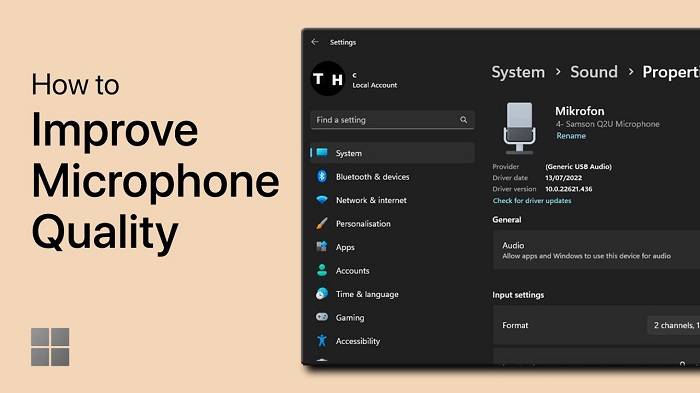
Enhanced Sound Quality: External microphones, speakers, and headphones often offer superior sound quality compared to built-in options. High-quality microphones capture clearer and more precise audio, while premium speakers deliver richer, more immersive sound. Headphones with advanced drivers provide a detailed and balanced audio output, enriching your listening experience.
Noise Reduction and Clarity: External microphones are often equipped with noise-canceling features, minimizing background interference and ensuring crystal-clear sound during recordings or conversations. This technology helps in capturing cleaner audio, enhancing communication clarity during calls or recordings.
Customization and Personalization: External audio peripherals frequently offer customization options, allowing users to adjust settings according to their preferences. You can fine-tune audio levels, equalizers, and effects to suit your specific needs, whether it’s for professional recording, gaming, or casual listening.
Increased Comfort and Convenience: Upgraded headphones often come with ergonomic designs, padded ear cups, and adjustable headbands, ensuring prolonged comfort during extended use. This comfort is especially crucial for professionals or avid users who spend significant time wearing headphones.
Versatility and Compatibility: External audio devices usually offer compatibility with various devices and platforms. They can seamlessly integrate with laptops, desktops, smartphones, gaming consoles, and more, providing a versatile audio solution for different purposes.
Professional-Grade Recording and Broadcasting: External microphones excel in delivering professional-grade audio quality for content creators, podcasters, musicians, and broadcasters. These microphones often capture a wider range of frequencies and offer features like cardioid or condenser patterns, catering to specific recording needs.
Immersive Gaming Experience: Dedicated gaming headphones or speakers with surround sound capabilities can significantly elevate the gaming experience. They provide directional audio cues, enhancing spatial awareness and immersion in games, making them crucial for competitive gaming or immersive storytelling.
Improved Collaboration and Communication: Utilizing external microphones and speakers during virtual meetings, conferences, or online collaborations enhances communication by delivering clearer and more natural audio, reducing misunderstandings and improving overall interaction.
Wireless Freedom and Mobility: Wireless external audio devices, such as Bluetooth-enabled headphones or speakers, offer freedom of movement without being tethered by cables, providing a convenient and hassle-free audio experience.
Understanding Zoom Audio Basics

Microphone Settings: The microphone serves as your voice transmitter in Zoom meetings. Exploring microphone settings allows you to optimize audio quality and minimize potential disruptions. Adjusting input volume levels helps in maintaining a clear and balanced sound without distortion or background noise. Additionally, selecting the appropriate microphone from the available options (built-in, external, or headset) enables you to pick the most suitable device based on quality and proximity to your voice source.
Speaker Settings: Equally important are the speaker settings, as they determine how you hear others during Zoom meetings. Configuring speaker settings involves adjusting output volume and selecting the right audio output device. This ensures that the sound is clear and at an audible level without causing echoes or feedback loops.
Importance of Selecting the Right Audio Source: Choosing the correct audio source in Zoom is crucial for effective communication. It involves selecting the right microphone and speaker devices for input and output, respectively. Opting for high-quality microphones helps in transmitting clear speech, while selecting appropriate speakers ensures you hear others distinctly without distortion. This choice significantly impacts the overall meeting experience, influencing clarity, comprehension, and engagement among participants.
Moreover :selecting the right audio source involves considering various factors such as the environment’s ambient noise, the type of microphone or headset used, and the positioning of speakers to prevent interference or feedback.
Enhancing Audio Quality: Besides adjusting settings within Zoom, external factors also affect audio quality. Factors like background noise, room acoustics, and the distance between the microphone and speaker can impact the clarity of audio transmission. Therefore, optimizing the physical environment by minimizing background noise and choosing a suitable location for the microphone and speakers can significantly enhance the overall audio experience.
Managing Background Noise

Zoom’s Noise Suppression: Zoom offers various levels of noise suppression. Users can select from low, medium, or high settings to filter out background noises like keyboard typing, background chatter, or ambient sounds.
Use Quality Headphones or Microphones: Investing in high-quality headphones with noise-cancellation or directional microphones can significantly minimize background noise. These devices focus on capturing your voice while reducing unwanted sounds.
Background Noise Filters: Consider using external software or apps designed explicitly for noise reduction. These programs often allow you to fine-tune audio settings to eliminate specific types of disturbances.
Physical Soundproofing: Make changes in your physical environment. This might involve using soundproofing materials, such as acoustic foam panels or rugs, to absorb echoes and reduce external noises.
Mute when Not Speaking: Encourage meeting participants to mute themselves when they’re not talking. This prevents background noises from disrupting the conversation.
Adjust Settings in a Quiet Environment: When possible, join calls from a quiet location. Adjust microphone sensitivity or noise suppression settings in Zoom while in a noise-free environment for better calibration.
Encourage Clear Communication Norms: Establish norms within your meetings that encourage participants to speak clearly, avoid talking over each other, and minimize background noise by muting when necessary.
Update Software and Drivers: Ensure that your Zoom application and audio drivers are updated. Sometimes, outdated software can cause audio issues.
External Noise Suppression Tools: Explore hardware solutions like physical noise-cancelling devices or external sound cards that offer advanced noise reduction capabilities.
Train Participants: Educate meeting participants on how to optimize their audio settings and environments to minimize background noise. This can improve the overall audio quality for everyone involved.
Optimizing Audio for Various Devices

Tailoring your audio settings according to the device you’re using is crucial for achieving an optimal audio experience. Each device, be it a computer, tablet, or smartphone, comes with its unique audio capabilities and specifications. By adjusting settings appropriately, you can maximize audio quality, clarity, and overall performance.
When dealing with computers, exploring the sound settings within the operating system can make a substantial difference. Adjusting the equalizer settings, volume levels, and configuring advanced audio options such as surround sound or spatial audio can significantly enhance the listening experience.
Tablets and smartphones offer a range of audio customization options within their settings menus. These devices often have presets or equalizer settings tailored for various audio outputs, including headphones, speakers, or Bluetooth devices. Tweaking these settings can fine-tune the audio output to match your preferences and the capabilities of the connected peripherals.
Furthermore, considering the hardware aspects like the quality of speakers or headphones connected to your device is essential. High-quality headphones may benefit from adjusting the audio output format or enabling features like high-resolution audio support if available. Similarly, external speakers might require different equalizer settings for optimal sound quality.
For those using Bluetooth or wireless audio devices, understanding the codec and profile support of your device can be crucial. Some devices support advanced Bluetooth codecs like aptX, LDAC, or AAC, which can significantly impact audio quality. Matching the supported codecs between your device and audio peripherals can ensure you’re getting the best possible sound.
Additionally, third-party applications or audio enhancement software available for specific devices might offer additional features or customization options. These can include noise cancellation, sound enhancement, or specialized equalizer settings that cater to different music genres or audio preferences
Advanced Audio Settings for Pro Users
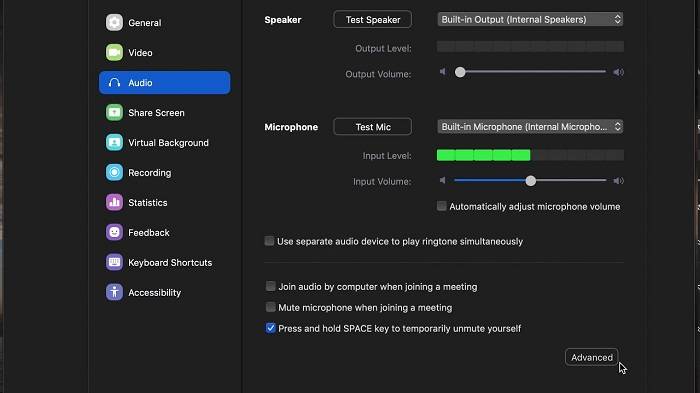
Explore the hidden gems in Zoom’s advanced audio settings, catering to users who seek a higher level of customization and control over their audio experience. Within these settings, users can delve into a plethora of options designed to enhance audio quality, reduce background noise, and optimize sound for various scenarios.
One of the standout features is the ability to adjust individual microphone settings, enabling users to fine-tune sensitivity levels, suppress background noise, or boost clarity according to their preferences. Additionally, Zoom offers advanced noise suppression algorithms that can intelligently filter out unwanted sounds, such as keyboard typing, ambient noises, or echoes, providing a more focused and clear audio output during meetings or presentations.
Furthermore, the platform allows for the configuration of audio inputs and outputs, enabling users to select specific devices for microphone input and speaker output. This feature is particularly beneficial for users with multiple audio devices or those seeking to optimize audio quality using specialized hardware.
Moreover, Zoom’s advanced audio settings include options for stereo audio, enabling a more immersive experience during virtual events, webinars, or music presentations. Users can also explore echo cancellation settings and adjust audio processing to minimize latency and ensure seamless communication.
Troubleshooting Common Audio Issues

To tackle echo problems, one effective troubleshooting technique involves adjusting microphone sensitivity or positioning to prevent audio feedback loops. Additionally, utilizing acoustic treatments in spaces susceptible to echoes can help minimize reverberations, enhancing audio quality.
Connectivity issues often arise due to a variety of factors such as outdated drivers, incompatible hardware, or network instability. Troubleshooting these concerns may involve updating drivers, checking hardware compatibility, switching network connections, or rebooting devices.
Sound distortion, another prevalent issue, can stem from various sources like interference, improper settings, or hardware malfunctions. Troubleshooting techniques may include adjusting audio settings, isolating potential sources of interference, or testing hardware components for defects.
Latency problems, characterized by delays between audio input and output, might result from software conflicts, insufficient system resources, or network latency. Troubleshooting such issues involves optimizing system settings, closing unnecessary background applications, and ensuring a stable network connection.
Furthermore, compatibility discrepancies between devices can lead to audio problems. Employing compatible software, ensuring firmware updates are current, and verifying device compatibility are crucial steps in mitigating these challenges.
Integrating Third-Party Audio Tools
Consider incorporating dedicated audio interfaces, such as mixers or digital signal processors, to optimize sound input/output. Explore software solutions like virtual soundboards or audio plugins that offer noise cancellation, voice modulation, or advanced equalization features, enriching the overall audio ambiance during Zoom calls.
Additionally, delve into the world of virtual instruments and music production software, which can be utilized creatively to add professional-grade audio effects or background music, enriching presentations or entertainment segments during your Zoom sessions.
Explore compatibility with leading audio platforms, leveraging APIs or integrations to seamlessly connect services like Spotify, SoundCloud, or podcasting tools. By integrating these, you can effortlessly share music, conduct live performances, or host interactive sessions without compromising audio quality.
Moreover, consider exploring emerging technologies such as spatial audio or binaural recording setups, providing an immersive and lifelike audio experience that transcends traditional stereo sound, delivering an unparalleled sensation of presence for all meeting participants.
Furthermore, third-party transcription services and AI-powered language translation tools can be integrated to enhance accessibility and facilitate seamless communication among a diverse audience, overcoming language barriers and ensuring inclusivity within your Zoom meetings.
Best Practices for Hosting Webinars

Invest in Quality Equipment: Acquire a high-quality microphone and headphones to capture clear sound without background noise interference. USB or XLR microphones and noise-canceling headphones are popular choices among webinar hosts for their superior audio capabilities.
Optimize Environment: Select a quiet and controlled environment for hosting your webinar. Minimize external disturbances by shutting windows, using soundproofing materials, and informing household members or colleagues about the importance of maintaining a noise-free atmosphere during your session.
Conduct Sound Tests: Before going live, perform comprehensive sound checks. Ensure your microphone levels are properly adjusted, test for any echoes or distortions, and confirm that all audio equipment is functioning optimally. Running trial sessions can help identify and rectify any audio-related issues beforehand.
Utilize Professional Software: Employ reputable webinar platforms equipped with advanced audio settings. Platforms like Zoom, GoToWebinar, or Adobe Connect offer features to enhance audio quality, such as echo cancellation, noise suppression, and audio equalization tools.
Encourage Audience Participation: Engage your audience by encouraging them to use high-quality headphones or earphones during the webinar. Remind attendees to minimize background noise by muting their microphones when not speaking, fostering a conducive environment for clear communication.
Provide Technical Support: Offer technical assistance to attendees encountering audio difficulties. Having a dedicated support team or providing troubleshooting instructions can mitigate issues promptly, ensuring all participants can fully engage with your content.
Incorporate Backup Plans: Prepare backup options in case of unexpected technical glitches. Have a secondary microphone or alternative audio setup ready to seamlessly transition in case of primary equipment failure.
Collaborative Audio Editing in Zoom

Audio Enhancement Tools: Zoom provides built-in features that enable users to enhance audio quality by reducing background noise, improving clarity, and adjusting audio levels. These tools are particularly beneficial for recordings in varied environments, ensuring clearer and more focused content.
Editing Capabilities: With Zoom’s editing functions, users can trim, cut, and merge audio segments effortlessly. This allows for the removal of unnecessary pauses, mistakes, or irrelevant content, thereby refining the overall audio output.
Collaborative Editing: Zoom’s collaborative features facilitate teamwork by allowing multiple users to edit audio recordings simultaneously. This fosters real-time collaboration among team members, ensuring efficient content refinement and quicker turnaround times.
Integration with Third-Party Tools: Zoom often integrates with various third-party audio editing software, offering users a more extensive range of tools and functionalities for advanced editing requirements. This integration enhances the flexibility and capabilities available for refining audio content.
Version Control and Saving Options: Zoom enables version control, ensuring that different iterations of the edited audio can be saved and tracked. This feature is valuable when experimenting with various edits and allows for easy retrieval of previous versions if needed.
Sharing and Exporting Options: Once the audio editing process is complete, Zoom allows for easy sharing and exporting of the refined content. Users can save the edited audio in different formats and share it across platforms seamlessly.
Training and Support: Zoom offers resources such as tutorials, webinars, and customer support to guide users in effectively utilizing these audio editing features. This ensures that users can maximize the potential of these tools for their specific needs.
Accessibility Features for Diverse Audiences

Live Transcription Services: Zoom provides real-time transcription services during meetings, enabling participants to read what is being spoken. This feature benefits individuals who are deaf or hard of hearing by providing a written record of the conversation in real-time.
Closed Captioning: For increased accessibility, Zoom offers closed captioning options, allowing hosts or designated participants to type or upload a transcript for attendees to follow along. This feature is particularly useful for individuals who benefit from text-based content or those with hearing impairments.
Audio Enhancements: Zoom’s audio settings allow customization of sound levels, suppression of background noise, and adjustment of audio profiles. These features are beneficial for users with different auditory sensitivities or preferences, ensuring clearer and more comfortable communication.
Keyboard Shortcuts and Screen Reader Support: Zoom integrates keyboard shortcuts for easier navigation within the platform, enabling users with visual impairments or limited dexterity to operate the software efficiently. Additionally, it supports screen readers for those who rely on these tools to access information on their screens.
Accessibility Settings and Compatibility: Zoom is designed to be compatible with various assistive technologies, ensuring that users can seamlessly integrate their preferred accessibility tools. Users can adjust settings for high contrast, color adjustments, and other visual preferences to accommodate diverse needs.
Collaboration Tools: Zoom includes interactive features like the whiteboard and screen sharing options, allowing participants to engage visually, benefiting individuals with varying communication styles and preferences.
Related Posts:
- Unlocking the Power of Podcast Games: A Comprehensive Guide to Interactive Audio Entertainment
- Ultimate Guide: How to Change AirPod Name Easily with Simple Commands
- Unlocking Inspiration: Exploring the Best Rich Roll Podcasts That Will Transform Your Life
FAQs
How can I reduce background noise during a Zoom meeting?
Explore Zoom’s noise suppression settings and consider using external tools like directional microphones for an enhanced noise-free experience.
Can I use Bluetooth headphones with Zoom?
Yes, Zoom supports Bluetooth headphones. Ensure your device is paired correctly and select the headphones as the audio source in Zoom settings.
What should I do if my microphone is not working in Zoom?
Troubleshoot microphone issues by checking device settings, ensuring the microphone is not muted, and testing it with other applications.
Are there specific audio settings for virtual events with a large audience?
Yes, optimize audio settings for large events by using external audio equipment, adjusting Zoom’s audio settings, and conducting thorough tests beforehand.
In the dynamic world of virtual communication, mastering Zoom audio settings is a game-changer. Elevate your virtual meetings, webinars, and collaborations by implementing the insights gained from this comprehensive guide. As technology continues to evolve, staying informed about the nuances of audio settings ensures that you’re always at the forefront of virtual communication excellence. Embrace the power of pristine audio, and let your voice resonate with clarity in the digital realm.