


Table of Contents
In today’s digital age, our smartphones have become indispensable tools that serve a multitude of functions. From communication and entertainment to productivity and creativity, these pocket-sized devices have revolutionized the way we live and work. One of the often-overlooked features of modern smartphones, including the iPhone, is the external microphone. In this comprehensive guide, we will delve into the world of iPhone external microphones, exploring their capabilities, troubleshooting common issues, and revealing tips to maximize their potential.
Understanding iPhone External Microphones
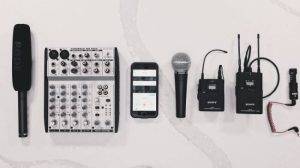
Before we dive into the details, let’s take a moment to understand the external microphone on your iPhone. While your iPhone comes equipped with an internal microphone for everyday use, the external microphone is a separate accessory that can significantly enhance your audio recording capabilities. Here are some key points to know about iPhone external microphones:
- Types of External Microphones: There are several types of external microphones available for iPhones, each designed for specific purposes. The most common types include lavalier microphones (clip-on microphones), shotgun microphones (directional microphones), and handheld microphones. Each type is suitable for different recording scenarios.
- Connectivity: External microphones can be connected to your iPhone through various methods. Some connect via the Lightning port, while others use the headphone jack or wireless Bluetooth technology. The choice of connectivity depends on the microphone and your iPhone model.
- Applications: External microphones are versatile tools that can be used for a wide range of applications, including recording interviews, podcasts, music, vlogs, voiceovers, and more. They are particularly useful when you need high-quality audio recording in noisy or challenging environments.
Choosing the Right External Microphone
The first step in harnessing the power of your iPhone’s external microphone is selecting the right one for your needs. Here are some considerations to keep in mind when choosing an external microphone:
- Microphone Type: Determine the type of external microphone that suits your recording needs. For interviews or vlogs, a lavalier microphone may be ideal, while a shotgun microphone is excellent for directional recording in noisy environments.
- Compatibility: Ensure that the microphone you choose is compatible with your iPhone model. Check the connectivity options (Lightning, headphone jack, or Bluetooth) and any required adapters.
- Budget: External microphones come in a wide price range. Set a budget that aligns with your recording requirements and quality expectations. While there are budget-friendly options, investing in a higher-quality microphone can yield better results.
- Additional Features: Some external microphones offer features such as adjustable gain, built-in windshields, and monitoring capabilities. Consider these features based on your recording conditions.
Connecting and Setting Up Your External Microphone

Once you’ve selected the right external microphone for your iPhone, it’s time to set it up and ensure it’s working correctly. Here’s how to do it:
- Connect the Microphone: Depending on the microphone’s connectivity, connect it to your iPhone using the appropriate cable or method. If you’re using a Bluetooth microphone, pair it with your iPhone following the manufacturer’s instructions.
- Adjust Microphone Settings: Go to your iPhone’s settings and select “Sound & Haptics” or a similar option. Here, you can adjust the input volume or gain for your external microphone. Test different settings to find the optimal level for your recording.
- Select the Recording App: Use a recording app that allows you to choose your external microphone as the audio source. Popular recording apps like Voice Memos, GarageBand, and third-party options often provide this option in their settings.
Recording High-Quality Audio
With your external microphone connected and set up, you’re ready to capture high-quality audio. Here are some tips to ensure your recordings are top-notch:
- Choose the Right Location: Select a quiet environment with minimal background noise for recording. If you’re outdoors, consider using a windscreen to reduce wind noise.
- Position the Microphone: Proper microphone placement is crucial for clear and crisp audio. For lavalier microphones, clip them close to the subject’s mouth. Shotgun microphones should be pointed directly at the sound source.
- Monitor Audio: If your external microphone supports monitoring (listening to the audio in real-time), use headphones to monitor your recordings. This allows you to catch any issues during the recording process.
- Experiment with Mic Settings: Depending on the microphone, you may have options to adjust settings like gain or directionality. Experiment with these settings to achieve the best results for your specific recording scenario.
Troubleshooting Microphone Issues
Even with the best equipment, you may encounter issues while using an external microphone with your iPhone. Here are some common problems and troubleshooting steps:
- No Sound: If you’re not getting any audio input from the external microphone, check the microphone’s connection to your iPhone. Ensure it’s securely attached or paired.
- Low Volume or Distortion: If your recordings have low volume or distortion, adjust the microphone gain or volume settings on your iPhone. Make sure you’re not overloading the microphone.
- Background Noise: If you’re recording in a noisy environment, consider using noise reduction software during post-production to minimize unwanted background noise.
- Interference: Wireless microphones, especially Bluetooth ones, can occasionally suffer from interference. Ensure that there are no other electronic devices nearby that could disrupt the signal.
Enhancing Microphone Performance
To get the most out of your iPhone’s external microphone, consider these additional tips:
- Invest in Accessories: Depending on your recording needs, consider investing in accessories such as a shock mount, boom pole, or pop filter to further improve audio quality.
- Practice and Edit: Improve your recording skills through practice. Additionally, use audio editing software to enhance your recordings further by adjusting levels, removing background noise, and adding effects.
- Protect Your Microphone: Properly store and protect your external microphone when not in use. A protective case or carrying pouch can help prevent damage and extend its lifespan.
- Stay Updated: Keep your recording apps and iPhone software up to date. Updates often include bug fixes and improvements that can benefit your recording experience.
Related Post:
Unveiling Precision: The Supercardioid Microphone
Embracing Clarity: The Power of Noise-Cancelling Microphones
Unveiling the Power of Precision: Exploring Hyper cardioid Microphones
Your iPhone’s external microphone is a powerful tool that can unlock a world of possibilities for audio recording and content creation. Whether you’re a journalist, content creator, musician, or simply someone who values high-quality audio, understanding the capabilities of your external microphone and following the tips outlined in this comprehensive guide will help you maximize its potential. With the right microphone, setup, and techniques, you can capture crystal-clear audio and take your recordings to the next level, making your iPhone an even more versatile device in your daily life.