


Table of Contents
In the fast-paced world of wireless audio, TOZO earbuds have emerged as a popular choice for those seeking a seamless and immersive audio experience. Whether you’re a seasoned user or a newcomer to TOZO’s impressive lineup, mastering the art of pairing your earbuds is crucial for unlocking their full potential. In this comprehensive guide, we’ll walk you through the step-by-step process of connecting TOZO earbuds to various devices, troubleshoot common connectivity issues, and explore advanced features that elevate your listening experience.
Understanding TOZO Earbud Models
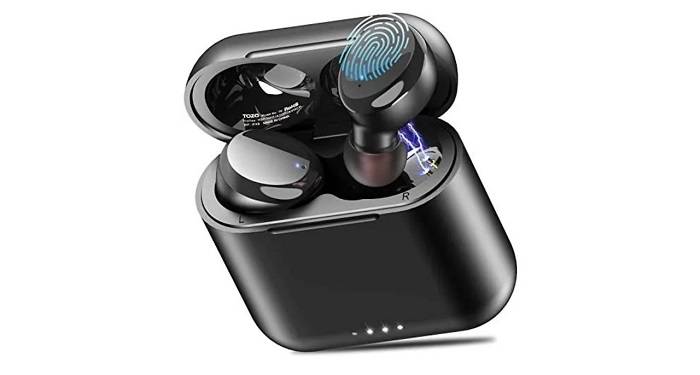
Let’s explore some of the popular TOZO earbud models and their unique features to better assist you in understanding the pairing process:
TOZO T6: The TOZO T6 earbuds are known for their sleek design and advanced technology. Equipped with Bluetooth 5.0, they offer a stable and efficient connection. To pair the TOZO T6, ensure that both earbuds are taken out of the charging case simultaneously. Once the LED indicators on both earbuds flash, find “TOZO T6” in your device’s Bluetooth settings and connect. These earbuds also feature touch controls for music playback, calls, and activating voice assistants.
TOZO T10: The TOZO T10 earbuds stand out for their ergonomic design and wireless charging capability. Pairing is straightforward – remove both earbuds from the charging case, and they will enter pairing mode automatically. Look for “TOZO T10” in your device’s Bluetooth menu and establish the connection. The T10 model offers a high level of water resistance, making them suitable for workouts and outdoor activities.
TOZO T12: With an emphasis on a secure fit and immersive sound quality, the TOZO T12 earbuds are popular among users who prioritize comfort during extended wear. To pair the T12, take both earbuds out of the charging case, wait for the LED indicators to flash, and then select “TOZO T12” on your device. These earbuds feature intuitive touch controls and are compatible with voice assistants for hands-free operation.
TOZO NC9: The TOZO NC9 model distinguishes itself with active noise cancellation (ANC) technology, providing an enhanced audio experience in noisy environments. To pair the NC9 earbuds, turn them on and wait for the LED indicators to flash. Locate “TOZO NC9” in your Bluetooth settings to connect. The ANC feature can be controlled via touch gestures, allowing you to customize your listening experience.
TOZO T5: Renowned for their deep bass and clear audio, the TOZO T5 earbuds are a favorite among music enthusiasts. To pair the T5, remove both earbuds from the charging case simultaneously, and they will automatically enter pairing mode. Look for “TOZO T5” in your device’s Bluetooth menu and connect. These earbuds also feature touch controls for convenient operation.
Compatibility Across Devices
TOZO earbuds are engineered to offer a versatile and user-friendly experience, accommodating a diverse array of devices equipped with Bluetooth technology. Understanding the compatibility matrix is crucial for ensuring a smooth pairing process across various gadgets. Here’s a comprehensive guide to help you connect your TOZO earbuds to different types of devices:
Smartphones: Most TOZO earbuds seamlessly pair with smartphones running both iOS and Android operating systems. Whether you own an iPhone or an Android device, the pairing process generally involves accessing the Bluetooth settings on your smartphone, locating the TOZO earbuds in the available devices list, and establishing a connection.
Tablets: TOZO earbuds are designed to work seamlessly with tablets, enhancing your audio experience on devices such as iPads, Android tablets, and other Bluetooth-enabled tablets. Follow a similar pairing process as you would with smartphones, ensuring Bluetooth is enabled on your tablet and selecting the TOZO earbuds in the Bluetooth menu.
Laptops and Computers: TOZO earbuds are compatible with laptops and computers equipped with Bluetooth capabilities. Whether you’re using a Windows laptop, a MacBook, or any other Bluetooth-enabled computer, access the Bluetooth settings, scan for available devices, and connect to your TOZO earbuds.
Smart TVs: Some TOZO earbud models can be paired with smart TVs that support Bluetooth audio. Check your TV’s user manual to confirm Bluetooth compatibility, enable Bluetooth on the TV, and locate the TOZO earbuds in the available devices list. This can be particularly useful for enjoying a personalized audio experience without disturbing others.
Gaming Consoles: TOZO earbuds can enhance your gaming experience on consoles like the PlayStation and Xbox, provided they have Bluetooth capabilities. Connect your earbuds to the console by accessing the Bluetooth settings and following the on-screen instructions for pairing. This allows you to immerse yourself in gaming audio while maintaining a wireless connection.
Other Bluetooth-Enabled Devices: TOZO earbuds are versatile enough to pair with various Bluetooth-enabled gadgets, such as fitness trackers, smartwatches, and more. The universal compatibility ensures that you can enjoy your favorite audio content across a wide range of devices.
Step-by-Step Pairing Guide for TOZO Earbuds

Once Bluetooth is activated on your device and the TOZO earbuds are in pairing mode, the next step involves locating and selecting the TOZO earbuds from the list of available devices on your device’s Bluetooth settings. This is typically found in the settings menu under “Bluetooth” or “Connections.” Once you’ve selected the TOZO earbuds, your device will initiate the pairing process.
At this point, it’s crucial to confirm the pairing on both your device and the TOZO earbuds. Some models may require you to press a multifunction button on the earbuds to confirm the connection. Ensure that you follow any on-screen prompts on your device to complete the pairing process successfully.
In case you encounter any difficulties during the pairing process, it’s helpful to consult the user manual provided with your TOZO earbuds. The manual often contains troubleshooting tips and additional information specific to your earbuds model.
Furthermore, it’s worth noting that some TOZO earbuds may offer additional features or customization options through a dedicated mobile app. If applicable, consider downloading and installing the TOZO app from the respective app store. The app can provide you with a more personalized audio experience, firmware updates, and control over various settings, enhancing the overall usability of your TOZO earbuds.
Once the pairing is complete, your TOZO earbuds are ready to deliver a wireless audio experience. Whether you’re enjoying music, taking calls, or engaging in other activities, the seamless connectivity offered by Bluetooth technology ensures a tangle-free and convenient experience.
Troubleshooting Connectivity Issues
While TOZO earbuds are designed for a seamless user experience, occasional connectivity issues may arise. One common problem users encounter is connection drops. If you experience sudden interruptions in audio playback, consider checking the proximity between your TOZO earbuds and the connected device. Walls, obstacles, or interference from other electronic devices can impact Bluetooth signal strength. Moving closer to the source device can often resolve these connection drop issues.
In cases where pairing failures occur, double-check that the TOZO earbuds are in pairing mode and that Bluetooth is enabled on your device. If issues persist, try turning off Bluetooth on your device, restarting it, and then re-enabling Bluetooth before attempting to pair again. Additionally, ensure that the TOZO earbuds are not connected to any other device that might interfere with the pairing process.
Audio lag, characterized by a delay between video and audio playback, can be another concern. This issue is more common when watching videos or playing games. In such cases, make sure that your TOZO earbuds and the connected device are within the Bluetooth range specified in the user manual. If the problem persists, you may want to check for software updates for both the earbuds and the device. Manufacturers often release updates to address performance issues and improve compatibility.
If you’ve exhausted these troubleshooting steps and the problems persist, performing a factory reset on your TOZO earbuds can be a useful step. Refer to the user manual for specific instructions on how to reset your earbuds. Keep in mind that a factory reset will remove any customized settings, so you may need to reconfigure your preferences afterward.
For users who want a more proactive approach to troubleshooting, reaching out to TOZO’s customer support or checking the official website for firmware updates and support articles can be beneficial. Manufacturers often provide resources and guidance to help users overcome connectivity challenges and optimize their experience with the product.
Exploring Advanced Features
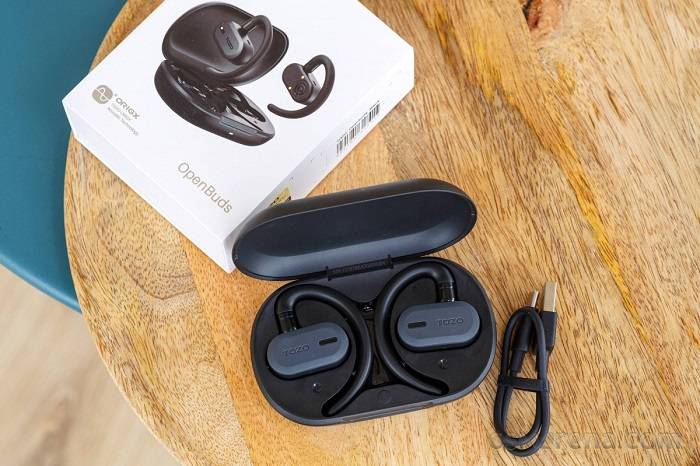
TOZO earbuds frequently boast advanced features that elevate the user experience, providing a range of capabilities beyond basic audio playback. One key feature that enhances convenience is touch controls. Many TOZO earbud models feature touch-sensitive surfaces that allow users to perform various actions with a simple tap or swipe. These controls may include play/pause, volume adjustment, track skipping, and even the activation of voice assistants. Familiarizing yourself with the specific touch gestures supported by your TOZO earbuds, as outlined in the user manual, enables effortless control and customization of your audio experience.
Customizable settings are another aspect that distinguishes TOZO earbuds. Through dedicated mobile apps or integrated controls, users can often personalize their listening experience. This may include adjusting equalizer settings to suit individual preferences, configuring touch control responses, or even modifying ambient sound modes. Exploring these customization options allows users to tailor their TOZO earbuds to match specific genres of music, optimize call quality, or enhance comfort during extended wear.
Firmware updates play a crucial role in keeping TOZO earbuds up-to-date with the latest enhancements and improvements. Manufacturers regularly release firmware updates to address performance issues, introduce new features, and ensure compatibility with evolving technology standards. To stay abreast of these updates, it’s advisable to periodically check for firmware updates through the TOZO app or the official website. Installing the latest firmware ensures that your TOZO earbuds continue to deliver optimal performance and take advantage of any new functionalities introduced by the manufacturer.
Moreover, some TOZO earbuds models offer water and sweat resistance, making them suitable for workouts and outdoor activities. Understanding the level of water resistance and adhering to care guidelines outlined in the user manual will help prolong the lifespan of your earbuds in various environmental conditions.
To delve even deeper into the capabilities of your TOZO earbuds, explore any additional features specific to your model. This could include voice command integration, smart sensor technology, or compatibility with virtual assistants. By harnessing these advanced features, you’ll unlock the full potential of your TOZO earbuds, transforming your audio experience into a highly personalized and technologically advanced journey.
Best Practices for Maintaining a Stable Connection
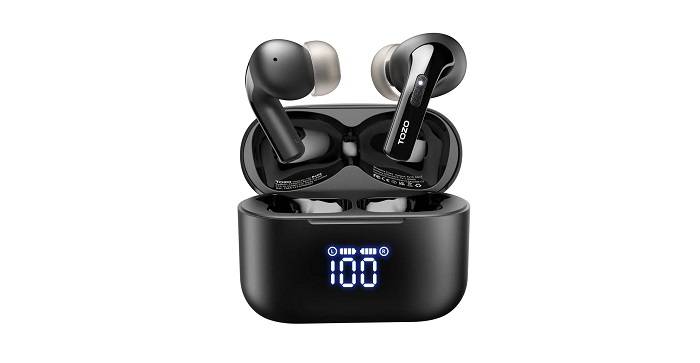
In addition to optimizing Bluetooth settings and keeping your TOZO earbuds clean, there are several other practices you can incorporate to enhance the performance and longevity of your earbuds. Here are some additional tips to ensure a consistently reliable connection and an overall satisfying user experience:
Firmware Updates: Regularly check for firmware updates for your TOZO earbuds. Manufacturers often release updates to improve connectivity, fix bugs, and enhance overall performance. Keeping your earbuds up-to-date ensures that you are benefiting from the latest advancements and optimizations.
Proper Storage: When not in use, store your TOZO earbuds in their provided case. This not only protects them from physical damage but also ensures they remain charged and ready for use. The case often serves as a portable charger, providing extra battery life for your earbuds when you’re on the go.
Avoid Extreme Temperatures: Exposing your earbuds to extreme temperatures, whether hot or cold, can negatively impact their battery life and overall functionality. Try to avoid leaving them in direct sunlight or in a freezing-cold environment for extended periods.
Customize Equalizer Settings: Most TOZO earbuds allow you to customize equalizer settings through companion apps. Experiment with these settings to tailor the audio output to your preferences. Adjusting the equalizer can significantly enhance the overall audio quality and make your listening experience more enjoyable.
Regularly Clean Charging Ports: Clean the charging ports of both your earbuds and the charging case with a soft, dry brush or compressed air. Dust and debris can accumulate over time, affecting the charging connection and, consequently, the battery life of your earbuds.
Manage Bluetooth Interference: Be aware of potential sources of Bluetooth interference, such as other electronic devices or crowded Wi-Fi networks. Keeping your earbuds away from these sources can help maintain a stable Bluetooth connection.
Secure Fit for Optimal Performance: Ensure a snug and secure fit of your TOZO earbuds in your ears. This not only enhances comfort but also contributes to better audio quality and a more stable connection. Experiment with different ear tip sizes to find the ones that provide the best fit for your ears.
Extending Battery Life

Certainly! To maximize your TOZO earbuds’ battery life, consider implementing the following expert tips that focus on efficient charging practices, utilizing power-saving features, and maintaining your earbuds’ battery health:
Follow Proper Charging Practices: Adhere to the manufacturer’s recommendations for charging your TOZO earbuds. Overcharging can degrade battery life over time, so unplug them once they reach a full charge. Additionally, avoid letting the battery drain completely before recharging, as partial charge cycles are generally better for lithium-ion batteries.
Utilize Power-Saving Features: Many TOZO earbuds come equipped with power-saving features, such as an auto-off function or a low-power mode. Enable these features when not actively using your earbuds to conserve battery life. This is particularly useful during periods of inactivity, such as when you’re not listening to music or taking calls.
Optimize Playback Settings: Adjusting playback settings can have a significant impact on battery life. Lowering the volume, using mono audio mode when applicable, and turning off unnecessary features like active noise cancellation can help extend the time between charges.
Monitor Battery Health: Keep an eye on your TOZO earbuds’ battery health through the manufacturer’s app or device settings. Some earbuds provide information about the overall health of the battery, allowing you to take proactive steps if any issues arise.
Avoid Extreme Temperatures During Charging: Extreme temperatures not only affect the physical components of your earbuds but can also impact battery performance. Charge your TOZO earbuds in a moderate temperature environment to maintain optimal battery health.
Charge with the Right Accessories: Use the provided charging cable and adapter or accessories recommended by the manufacturer. Incompatible chargers may not deliver the right voltage, which can potentially harm the battery or reduce its lifespan.
Regularly Update Firmware: Manufacturers often release firmware updates that include optimizations for battery performance. Ensure that your TOZO earbuds are running the latest firmware version to take advantage of any improvements that may enhance battery efficiency.
Consider a Battery Replacement Program: Some manufacturers offer battery replacement programs for their wireless earbuds. If you notice a significant decline in battery performance over time, explore whether your TOZO earbuds are eligible for a battery replacement to restore optimal functionality.
Properly Store During Inactivity: If you’re not planning to use your TOZO earbuds for an extended period, store them in a cool, dry place with a moderate battery charge (around 50%). This helps prevent the battery from entering a deep discharge state, which can be detrimental to its health.
Customizing Sound Settings
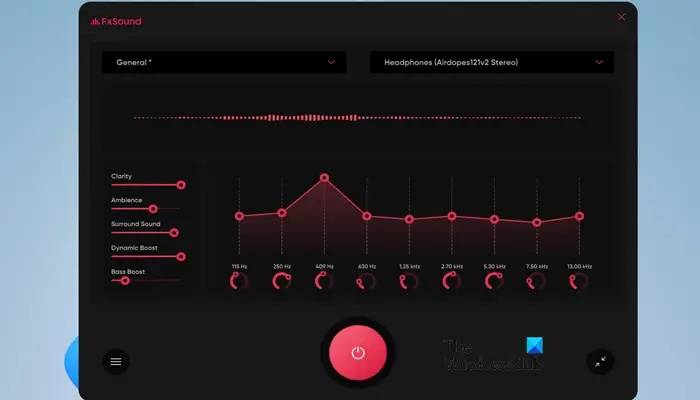
Unlock a world of personalized audio experiences with TOZO earbuds by delving into the myriad sound settings and customization options available. Tailoring the audio output to your preferences involves exploring features like equalizer adjustments, sound profiles, and other settings that cater to your unique listening preferences. Here’s a comprehensive guide to help you optimize your TOZO earbuds’ audio settings:
Equalizer Adjustments: Most TOZO earbuds come with an equalizer (EQ) that allows you to fine-tune the balance of frequencies, such as bass, midrange, and treble. Experiment with different EQ presets or manually adjust the sliders to find the perfect balance that suits your preferred music genres or listening scenarios. For example, boost the bass for a more pronounced low-end in electronic music or tone down the treble for a smoother listening experience with classical music.
Sound Profiles: Explore pre-set sound profiles designed for specific genres or activities. Whether you’re into rock, pop, or podcasts, TOZO earbuds often provide profiles that enhance the audio based on the content you’re enjoying. Switch between profiles to find the one that best complements your current listening preferences.
Custom Presets: Some TOZO earbuds allow you to create custom presets. Save your preferred EQ settings as presets for quick access to your personalized audio profiles. This is especially useful if you have different preferences for various music genres or if you switch between music, movies, and calls frequently.
Mono Audio Mode: Enable mono audio mode if you prefer hearing audio from a single earbud. This feature can be beneficial for users who want to stay aware of their surroundings while still enjoying their favorite content.
Volume Limitation: Protect your hearing by setting volume limitations within the earbuds’ settings. This ensures that you don’t accidentally expose yourself to excessively loud audio levels, promoting a safer and more responsible listening experience.
Companion Apps: Many TOZO earbuds come with companion apps that offer advanced customization options. Explore these apps to access additional features, such as ambient sound control, touch controls customization, and more. The app interface often provides an intuitive platform for adjusting settings to your liking.
Balance Adjustment: Fine-tune the left-right audio balance to accommodate any hearing imbalances or personal preferences. This feature ensures that you experience audio in a way that feels most comfortable to you.
Firmware Updates: Keep your TOZO earbuds up-to-date with the latest firmware releases. Manufacturers often introduce improvements to sound processing algorithms, addressing any potential audio-related issues and enhancing overall audio quality.
Adapt to Your Environment: Some TOZO earbuds feature adaptive audio settings that adjust based on your surroundings. Explore these options to ensure an optimal listening experience, whether you’re in a quiet room or a bustling urban environment.
Connecting TOZO Earbuds to Multiple Devices
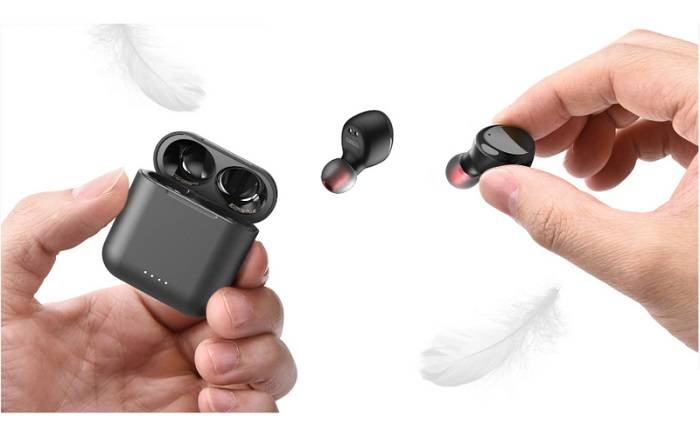
For users who lead a dynamic, multi-device lifestyle, the capability to seamlessly switch between devices is a crucial feature. TOZO earbuds offer a convenient solution to this demand, allowing you to pair your earbuds with multiple devices and effortlessly switch connections without sacrificing audio quality. Here’s a step-by-step guide to mastering this valuable functionality:
Pairing with Multiple Devices: Start by pairing your TOZO earbuds with the first device. Follow the standard pairing procedure outlined in the user manual or on the TOZO website. Once successfully connected, your earbuds will be recognized by the device.
Initiate Connection with Additional Devices: To pair your TOZO earbuds with another device, turn off the Bluetooth on the currently connected device. This action prompts the earbuds to enter pairing mode again. Activate Bluetooth on the second device and select your TOZO earbuds from the list of available devices. Follow any prompts to complete the pairing process.
Automatic Device Switching: Some TOZO earbuds come equipped with automatic device switching capabilities. This feature enables the earbuds to detect which device is actively playing audio and seamlessly switch the connection without manual intervention. If your TOZO earbuds support this feature, make sure it’s enabled in the earbuds’ settings or companion app.
Manual Device Switching: If automatic device switching is not available or you prefer manual control, use the Bluetooth settings on your device to switch between paired devices. Disconnect the earbuds from the currently connected device, and then connect them to the desired device by selecting them from the Bluetooth menu.
Quick Switch Buttons (If Available): Some TOZO earbuds come with touch controls that allow for quick and easy device switching. Familiarize yourself with the specific touch controls related to this function, and use them to seamlessly switch between devices without having to go through Bluetooth settings.
Prioritize Devices: Some TOZO earbuds and companion apps allow you to prioritize or save the order of paired devices. This means that when you want to switch, the earbuds will prioritize connecting to the next device in the queue. Check the user manual or companion app settings to see if this feature is available for your model.
Maintain Audio Quality During Switching: TOZO earbuds are designed to maintain high audio quality during device switching. However, it’s essential to ensure that the devices you are connecting to support the appropriate Bluetooth protocols for optimal audio transmission. Bluetooth 5.0 or later is recommended for the best performance.
Firmware Updates: Keep your TOZO earbuds’ firmware up-to-date to benefit from any enhancements or bug fixes related to multi-device connectivity. Manufacturers often release updates that improve the overall performance and user experience.
Staying Updated with Firmware Releases

Staying informed about and actively participating in the firmware update process for your TOZO earbuds is crucial for optimizing performance, addressing potential issues, and unlocking new features. TOZO regularly releases firmware updates, providing users with an opportunity to enhance their earbuds’ capabilities. Here’s a comprehensive guide to help you navigate the firmware update process:
Check for Updates Regularly: TOZO typically releases firmware updates to address bugs, improve performance, and introduce new features. Make it a habit to check for updates regularly, either through the TOZO official website, the companion app (if available), or the manufacturer’s user portal.
Download Official Firmware Releases: Ensure that you only download firmware updates from official TOZO channels. Avoid third-party sources to prevent potential security risks or issues with unauthorized firmware versions. The official TOZO website or companion app is the safest and most reliable source for updates.
Review Release Notes: Before initiating a firmware update, review the release notes provided by TOZO. This documentation outlines the specific improvements, bug fixes, and new features introduced in the latest firmware version. Understanding these details helps you assess whether the update aligns with your needs and expectations.
Prepare Your Earbuds: Charge your TOZO earbuds sufficiently before starting the firmware update process. Some updates may require a certain level of battery charge to ensure a smooth and uninterrupted installation. A low battery during an update could lead to complications.
Follow the Update Instructions: Carefully follow the step-by-step instructions provided by TOZO for updating your earbuds. The process may involve connecting your earbuds to a computer or using a companion app on your smartphone. Ensure a stable internet connection during the update to prevent interruptions.
Backup Settings (If Applicable): Some TOZO earbuds come with companion apps that allow you to customize settings such as EQ presets and touch controls. Before updating, check if the app provides an option to back up your settings. This ensures you can restore your preferred configurations after the firmware update.
Monitor the Update Progress: During the firmware update, keep a close eye on the progress indicators provided by the update tool or app. Do not interrupt the process, and avoid using your earbuds until the update is complete. Patience during this phase ensures a successful installation.
Verify Successful Update: After the firmware update is complete, verify that the new version is installed successfully. Check the earbuds’ settings or use the companion app to confirm the updated firmware version. This ensures that your TOZO earbuds are now running the latest software.
Feedback and Support: If you encounter any issues during or after the firmware update, provide feedback to TOZO through official channels. Manufacturers often appreciate user input to address any unexpected issues and improve future updates. Additionally, check the TOZO support resources for troubleshooting assistance.
Set Automatic Updates (If Available): Some TOZO earbuds and companion apps offer automatic firmware updates. If this feature is available, consider enabling it to ensure that your earbuds stay up-to-date without requiring manual intervention.
Related Posts:
- Unlock the Power of Surround Sound: Syncing Multiple Bluetooth Speakers with iPhone
- Unveiling the Mystery: Where is the Mic on iPhone 11? A Comprehensive Guide
- Unveiling the Serenity: Why Are AirPods So Quiet and How to Enhance Your Listening Experience
FAQs
Can I pair TOZO earbuds with non-Bluetooth devices?
TOZO earbuds are primarily designed for Bluetooth connectivity. However, there are workaround solutions for connecting them to non-Bluetooth devices, and we’ll explore those options.
How do I reset my TOZO earbuds?
In case of persistent connectivity issues, a reset might be necessary. We’ll guide you through the steps to reset your TOZO earbuds to factory settings.
Are TOZO earbuds water-resistant?
TOZO offers water-resistant models, and we’ll provide insights into the water resistance ratings of various TOZO earbuds. Understand the limitations and ensure the longevity of your earbuds.
Can I use only one TOZO earbud at a time?
TOZO earbuds often support mono and stereo modes. Learn how to use a single earbud for calls or individual listening without sacrificing audio quality.
What should I do if my TOZO earbuds won’t pair?
We’ll troubleshoot the common reasons for pairing failures and guide you through the necessary steps to resolve the issue.
Mastering the art of pairing TOZO earbuds is a gateway to an enhanced audio experience. Whether you’re a tech enthusiast or a casual user, this comprehensive guide has equipped you with the knowledge to seamlessly connect your TOZO earbuds to various devices, troubleshoot issues, and explore advanced features. Elevate your audio journey with TOZO’s cutting-edge technology, and immerse yourself in a world of crystal-clear sound and wireless convenience.