


Table of Contents
Earphones have become indispensable accessories for many of us, offering a personal, immersive listening experience on the go. However, there may come a time when your beloved earphones start to sound muffled, leaving you frustrated and wondering what could be the cause. In this comprehensive guide, we will explore the common reasons behind muffled earphone sound and provide practical solutions to help you restore the clarity and vibrancy of your audio experience. Get ready to unveil the secrets behind clear, crisp sound from your earphones!
Understanding the Issue
Before we dive into solutions, let’s investigate some common factors that can lead to muffled sound in your earphones:
Audio Source Quality
The quality of the audio source plays a crucial role in determining how your earphones sound. Here are some considerations:
- Audio File Quality: High-quality audio files, such as lossless formats like FLAC or high-bitrate MP3s, tend to sound clearer and more vibrant. Low-quality files may sound muffled or lack detail. Whenever possible, choose higher-quality audio files for a better listening experience.
- Streaming Quality: If you’re streaming music, check the quality settings in your streaming app. Opt for higher quality settings to improve the clarity of your audio.
- Check for Internet Connectivity: Streaming services may reduce audio quality when there are issues with internet connectivity. Ensure a stable internet connection for the best streaming experience.
Dirty or Blocked Ear Tips
Earwax buildup or dirt on your earphone’s ear tips can significantly affect sound clarity. Here’s how to address it:
- Inspect Ear Tips: Carefully examine the ear tips of your earphones for visible earwax or dirt buildup. If you spot any, remove the ear tips and clean them thoroughly using a soft, lint-free cloth or a cotton swab. Be gentle to avoid pushing earwax further into the earphones.
- Check Your Ears: If you suspect earwax in your ears is affecting your hearing, consider using an over-the-counter earwax removal kit or consult a healthcare professional for safe earwax removal.
Damaged or Worn Cables
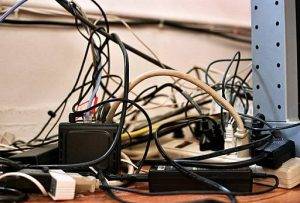
Cable issues can lead to sound problems in your earphones. Here’s what to do:
- Inspect the Cables: Examine the cables of your earphones for any visible damage, such as fraying or kinks. If you notice any damage, consider replacing the cables or having them repaired by a professional.
- Proper Cable Connection: Ensure that the cables are securely connected to both your earphones and the audio source device. Loose connections can result in poor audio quality.
Volume Limit Settings
Some devices, especially those designed for children, have volume limit settings to protect hearing. If your earphones sound muffled and you suspect this setting is enabled, follow these steps:
- Device Settings: Go to the settings menu of your device and check for volume or audio settings. Look for a volume limit or audio limit option and disable it or adjust it to a suitable level.
Equalizer Settings
Incorrect equalizer settings on your device or app can lead to muffled audio. Here’s how to adjust them:
- Device Equalizer: Check your device’s audio settings for an equalizer or sound enhancement option. Experiment with different presets or manually adjust the equalizer to improve sound clarity.
- App Equalizer: Some music apps have built-in equalizer settings that allow you to fine-tune the audio. Explore these settings and make adjustments as needed.
Earphone Hardware Issues
If you’ve ruled out the above factors and your earphones still sound muffled, there may be hardware issues within the earphones themselves. In this case, consider the following steps:
- Check for Physical Damage: Inspect your earphones for any visible physical damage, such as cracks or loose components. Physical damage can impact sound quality and may require professional repair or replacement.
- Driver Issues: Earphones rely on drivers to produce sound. If a driver is damaged or malfunctioning, it can result in muffled audio. Contact the manufacturer or a professional technician for diagnosis and repair.
- Test with Another Device: To rule out device-related issues, test your earphones with a different audio source, such as another smartphone or a computer. If the issue persists across multiple devices, it’s more likely a problem with the earphones themselves.
- Contact Customer Support: If your earphones are under warranty or covered by a protection plan, reach out to the manufacturer’s customer support for assistance and potential replacement.
For More Login Guides, Visit:
Navigating the Digital Soundscape: Does Spotify Count as Screen Time?
How To Start A Podcast In 2023
What Kind Of Microphone Is Best For Podcasts?
What Mic Does Joe Rogan Use On His Podcast?
The frustration of muffled sound from your earphones can be swiftly resolved by identifying and addressing the underlying causes. By considering factors like audio source quality, ear tip cleanliness, cable condition, volume limit settings, equalizer adjustments, and hardware issues, you can regain the crisp and clear audio quality you desire.
Remember that regular maintenance, proper cleaning, and responsible usage of your earphones contribute to their longevity and performance. Whether you’re enjoying music, podcasts, or your favorite audiobook, a little care can go a long way in preserving the audio clarity of your trusty earphones. So, don’t let muffled sound dampen your listening experience—take action and rediscover the vibrant world of sound that your earphones can provide.