

Table of Contents
Your MacBook Pro is a versatile device designed not just for work but also for communication. Whether you’re attending virtual meetings, recording podcasts, or making video calls, the built-in microphone plays a pivotal role in ensuring you’re heard loud and clear.
In this comprehensive guide, we will explore the various microphone setups on different MacBook Pro models, their features, and how to make the most of them.
Understanding the MacBook Pro Microphone

Before we dive into the details, let’s start by understanding the basics of the microphone on your MacBook Pro.
- Microphone Types: MacBook Pro models feature different types of microphones, including built-in microphones, external microphone ports, and even additional microphones for noise cancellation.
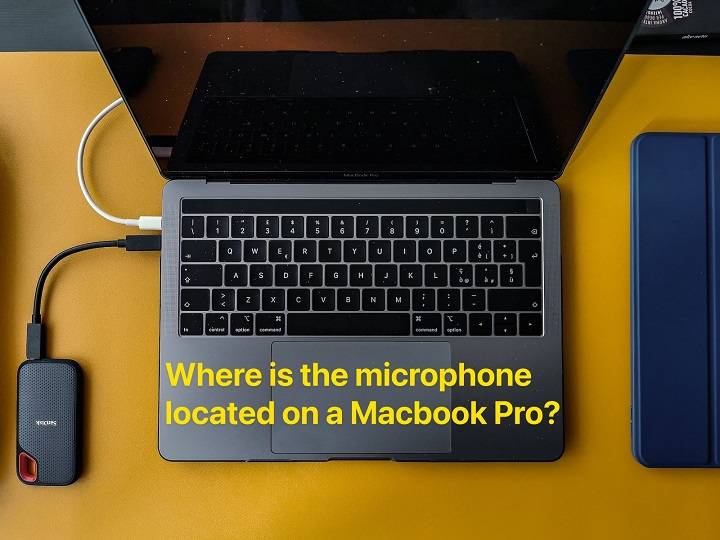
- Built-in Microphone: All MacBook Pro models come equipped with a built-in microphone, often located near the top of the screen or keyboard area. This microphone is designed for general audio input, such as voice calls and video conferencing.
- External Microphones: Some users prefer external microphones for professional recording or enhanced audio quality. MacBook Pro models offer various connectivity options for external microphones, including USB, Thunderbolt, and audio input/output ports.
Locating the Microphone on MacBook Pro
The exact location of the microphone on your MacBook Pro depends on the model. Let’s explore where you can typically find it:
- MacBook Pro with Retina Display: On these models, the built-in microphone is usually located near the top of the screen, either to the left or right of the webcam. It’s often not visible, as it’s seamlessly integrated into the design.
- MacBook Pro with Touch Bar: Similar to the Retina Display models, these laptops have the microphone near the top of the screen. Additionally, there may be additional microphones for noise cancellation or improved audio quality.
- MacBook Pro with M1 Chip: The microphone placement is typically consistent with previous models, near the top of the screen. The M1 chip models may have enhanced microphone capabilities.
Using the Built-in Microphone

Now that you know where the microphone is located, let’s explore how to use it effectively for various purposes:
- Audio Recording: The built-in microphone is suitable for recording voice memos, lectures, or podcasts. To use it, open an audio recording app like Voice Memos and start recording.
- Video Calls: When making video calls using apps like Zoom or FaceTime, the built-in microphone automatically activates. Ensure that your MacBook Pro is not muted, and speak directly into the microphone area for clear audio.
- Voice Commands: If you use voice commands with Siri, ensure that the microphone is not obstructed, and speak clearly to get accurate responses.
External Microphones for Enhanced Audio Quality
While the built-in microphone serves many purposes, some users may require higher audio quality or specific features for their needs. Here’s how to use external microphones with your MacBook Pro:
- Connectivity Options: MacBook Pro models offer various connectivity options for external microphones. USB and Thunderbolt ports are commonly used for connecting external microphones. You can also use audio input/output ports with the appropriate adapters.
- Selecting the Right Microphone: Choose an external microphone that suits your needs. USB microphones are popular for their plug-and-play convenience, while XLR microphones offer professional-grade audio quality.
- Setting Up External Microphones: Once connected, your MacBook Pro should recognize the external microphone automatically. However, you may need to adjust the microphone input settings in System Preferences to ensure it’s the preferred audio source.
- Recording Software: To use external microphones for tasks like podcasting or music production, you’ll need audio recording software like GarageBand, Logic Pro, or Audacity. These apps allow you to configure microphone settings and record high-quality audio.
Troubleshooting Microphone Issues
Microphone issues can be frustrating, but they’re often solvable. Here are some common troubleshooting steps:
- Check Permissions: Ensure that the apps you’re using have permission to access the microphone. You can adjust app permissions in System Preferences under Security & Privacy.
- Inspect Microphone Hardware: Examine the external microphone for physical damage or loose connections. For built-in microphones, gently clean the area with a soft, lint-free cloth to remove dust or debris.
- Restart Your MacBook Pro: Sometimes, a simple restart can resolve microphone issues caused by temporary software glitches.
- Update Software: Keeping your macOS and apps up to date can resolve compatibility issues that may affect microphone performance.
- Reset Audio Settings: In System Preferences, go to Sound > Input and select the built-in microphone or external microphone as the default input device.
For More Login Guides, Visit:
The Patriot Party News: Unveiling the Heartbeat of the Movement
Pope Francis ITV News: A Year of Papal Insight and Global Impact
Kris Aquino Latest News: A Year in Review
Enhancing Microphone Performance
To optimize your MacBook Pro’s microphone performance, consider these tips:
- Use a Pop Filter: If you’re recording vocals, consider using a pop filter to reduce plosive sounds (e.g., “p” and “b” sounds) that can cause distortion.
- Adjust Input Levels: In System Preferences > Sound > Input, you can adjust input levels for your microphone. Keep them at an appropriate level to avoid clipping or distortion.
- External Audio Interfaces: For professional audio recording, consider using an external audio interface, which provides advanced controls and better audio quality.
- Noise Cancellation: Some MacBook Pro models have additional microphones for noise cancellation. Ensure they are not obstructed to benefit from background noise reduction during calls.
Understanding the microphone setup on your MacBook Pro and how to use it effectively is essential for clear communication, content creation, and entertainment. Whether you rely on the built-in microphone for everyday tasks or use external microphones for professional recording, your MacBook Pro’s audio capabilities are there to enhance your experience. Follow the tips in this guide, troubleshoot common issues, and explore external microphone options to ensure that your MacBook Pro’s microphone serves you well in all your endeavors. Say goodbye to audio problems and hello to crystal-clear sound on your MacBook Pro.