

Table of Contents
In today’s digital era, where remote work and online meetings have become the norm, platforms like Zoom have been instrumental in facilitating seamless communication. However, encountering issues with Zoom’s audio functionality can be frustrating and disruptive, hindering the flow of meetings, presentations, or virtual gatherings.
The “Zoom audio not working” problem is a common occurrence experienced by many users across various devices and operating systems. It manifests in different forms, such as no sound at all, distorted audio, microphone malfunctions, or inability to hear other participants.
Understanding the root causes behind these audio glitches is crucial for swift resolution. Multiple factors can contribute to this issue, ranging from device-specific settings, software conflicts, network problems, to outdated drivers or application bugs.
Resolving Zoom audio problems requires a systematic approach, troubleshooting step-by-step to identify and rectify the underlying issues. This comprehensive guide aims to assist users in diagnosing and fixing these audio hiccups effectively, ensuring uninterrupted and crystal-clear communication on Zoom.
Checking Device Settings
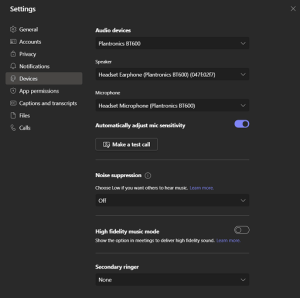
Device Configuration: Access the system settings to configure your audio devices. This might involve going into the control panel or system preferences to manage audio input/output options.
Driver Updates: Check for any available updates for your audio drivers. Sometimes, outdated drivers can cause issues with your audio devices. Updating them could potentially resolve any problems.
Troubleshooting: If the audio devices aren’t functioning correctly, troubleshoot by checking cables, ports, or wireless connections. Sometimes, a loose connection or a faulty cable could be the cause of the issue.
Software Settings: Explore settings within the software or application you’re using. Some programs have specific audio settings that might need adjustment for optimal performance.
Sound Quality: Ensure that the sound quality is satisfactory. Adjust settings for echo cancellation, background noise reduction, or other features that could enhance the audio experience.
Test in Different Environments: If possible, test your audio setup in different environments to ensure its reliability in various conditions. This could include quiet spaces, noisy environments, or areas with different acoustic characteristics.
Peripheral Devices: If using external peripherals like USB microphones or Bluetooth speakers, ensure they are paired correctly and have sufficient battery or power.
Updating Zoom App and Drivers

Check Manufacturer Websites: Visit the websites of your computer’s hardware components (such as graphics cards, audio devices, network adapters) or the manufacturer’s support page to download the latest drivers specifically tailored for your device model and operating system.
Use Device Manager (Windows) or Software Update (Mac): On Windows, you can access Device Manager to check for driver updates. On Mac, use the Software Update feature to keep system drivers current.
Automate Updates: Consider using software tools or utilities that automate driver updates. These tools can regularly scan your system and install the latest compatible drivers, simplifying the process.
Update Regularly: Make it a habit to check for driver updates periodically, especially before important Zoom meetings or presentations, to ensure your system is optimized for performance.
Network and Connectivity Issues
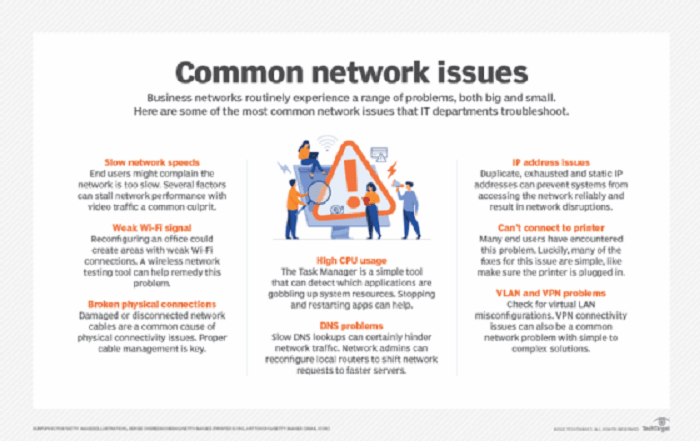
Check Hardware Connections: Ensure that all cables (Ethernet, audio devices) are properly connected. Sometimes loose connections can cause interruptions in audio streaming.
Network Diagnosis: Run network diagnostic tests on both Wi-Fi and Ethernet connections. Use built-in OS tools or third-party software to check for any issues with connectivity, such as packet loss, latency, or inconsistent speeds.
Router and Modem Inspection: Verify if the router and modem are functioning correctly. Restart these devices to refresh the connection. Look for any firmware updates for your router that might address connectivity issues.
Interference and Signal Strength: Analyze the Wi-Fi signal strength and inspect for potential sources of interference (other electronic devices, walls, or physical barriers). Consider relocating the router or using Wi-Fi extenders to enhance signal coverage.
Ethernet Stability: Test the Ethernet connection for stability. Try different Ethernet ports on the router or switch if available. Check if the Ethernet cable is damaged and replace if necessary.
Software and Drivers: Ensure that audio drivers on your device are up-to-date. Sometimes outdated drivers can cause connectivity problems. Similarly, keep your operating system and audio-related software updated.
Firewall and Security Software: Check firewall settings and security software to ensure they are not blocking the audio streaming services. Adjust settings if needed to allow the necessary connections.
QoS (Quality of Service) Settings: Review QoS settings on the router to prioritize audio streaming traffic. This can ensure that sufficient bandwidth is allocated for a smooth audio experience.
Reset Network Settings: As a last resort, reset network settings on your device. This will revert configurations to default and can often resolve persistent connectivity issues.
Contact ISP (Internet Service Provider): If the problem persists and seems to be related to your internet service, get in touch with your ISP. They can run diagnostics on their end and provide assistance in resolving network-related issues.
Granting App Permissions
Device Settings: Check your device settings to ensure that the microphone and speaker you intend to use with Zoom are correctly selected as default audio devices. This prevents conflicts arising from different apps trying to control the same devices simultaneously.
Close Unnecessary Applications: Shut down or disable other applications that might use or alter your audio settings. This includes music or video players, gaming voice chats, or any software that might automatically take control of your audio devices.
Update Drivers and Software: Make sure your device’s audio drivers are up to date. Outdated drivers can sometimes cause conflicts or lead to malfunctioning audio during Zoom calls.
Test Before Meetings: Before joining an important Zoom meeting, conduct a test call to ensure that your microphone and speakers are working correctly within the Zoom environment. Use Zoom’s test meeting feature or its audio settings to check the audio input and output.
Troubleshoot Audio Issues: If you encounter audio problems during a Zoom call, use the application’s built-in troubleshooting tools. Zoom often provides options to switch between different audio devices or adjust audio settings during an ongoing meeting.
Regular Updates: Keep your Zoom application updated to the latest version. Updates often include bug fixes and improvements that can resolve compatibility issues with audio devices.
Troubleshooting OS-Specific Problems
Windows:Check Device Settings: Ensure that the correct audio input/output devices are selected within Zoom and Windows settings. Update or reinstall audio drivers if necessary.Access Windows Sound settings to modify the default audio devices and their properties. Troubleshoot sound problems using the built-in Windows troubleshooter.
MacOS:Verify System Preferences: Navigate to System Preferences > Sound and check the input/output settings. Ensure the correct devices are selected.If facing persistent issues, resetting Core Audio can often resolve audio-related problems. Use Terminal commands or utilities like Audio MIDI Setup to reset.
Linux:PulseAudio Configuration: Linux systems often use PulseAudio. Use tools like pavucontrol to manage audio settings, ensuring the right devices are chosen for input/output within Zoom and the system settings.Check if specific drivers or software updates are available for your sound card or chipset to ensure compatibility.
IOS:App Settings: Within the Zoom app, verify microphone and speaker permissions. Restart the app and device if necessary. Go to Settings > Privacy > Microphone and ensure Zoom has permission to access the microphone. Also, check Settings > Sounds & Haptics for device audio settings.
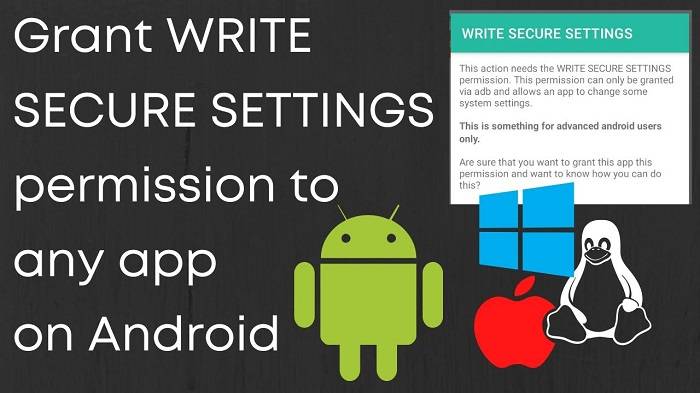
Android:App Permissions: Access App Settings > Permissions on your Android device and ensure that Zoom has microphone and speaker permissions. Navigate to Settings > Sound > Audio settings to configure default input/output devices and troubleshoot sound-related issues.
System-Specific Optimization for Zoom:Bandwidth Management: Adjust Zoom settings to optimize audio for varying bandwidths. Use the ‘Use Original Sound’ option for higher audio fidelity. Close unnecessary applications running in the background that might interfere with audio processing on the respective systems.Ensure Zoom, along with the operating system and device drivers, is up-to-date to benefit from bug fixes and performance enhancements.
Utilizing Zoom’s Audio Settings
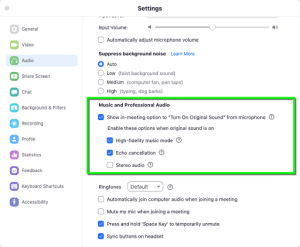
Zoom’s audio settings: for customization can significantly enhance your virtual communication experience. Zoom offers a range of audio settings that allow users to fine-tune their audio quality and clarity, catering to various preferences and situations.
To optimize audio quality : users can start by navigating through Zoom’s settings menu. Within the settings, there are options to adjust microphone input levels, speaker output levels, and the choice of audio devices. Choosing the right microphone and speakers/headphones can greatly impact the overall audio experience.
Moreover Zoom provides : advanced audio settings for noise cancellation and suppression. Enabling noise cancellation features helps in reducing background disturbances during meetings, ensuring a clearer sound output. Users can experiment with these settings to strike a balance between minimizing unwanted noise and preserving the clarity of speech.
Another critical aspect : is the audio codec selection. Zoom allows users to modify the audio codec settings, which can influence the quality and compression of the audio signal. Adjusting these settings might be beneficial in scenarios where maintaining high audio fidelity is crucial.
Hardware Check and Troubleshooting
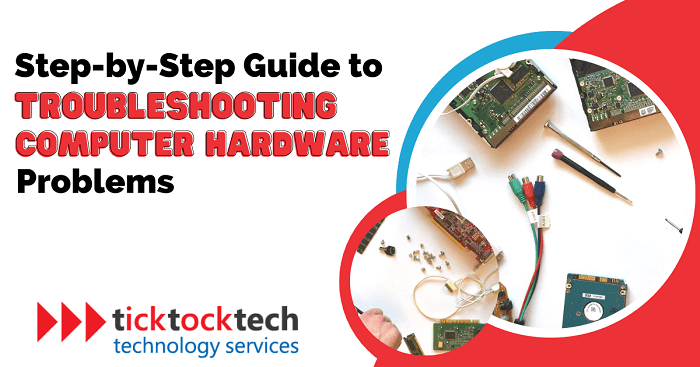
Check Connections: Ensure that all cables connecting the external devices (headphones, microphones) are securely plugged in. Sometimes loose connections can cause audio problems.
Test on Multiple Devices: Try using the headphones or microphones on different devices to determine if the issue is with the external device or the device it’s connected to. This helps isolate the problem.
Update Drivers: Make sure that the drivers for the external audio devices are up-to-date. Outdated drivers can cause compatibility issues and affect audio performance.
Inspect Hardware: Physically examine the external devices for any visible damage, frayed wires, or broken parts. Sometimes, hardware issues might be apparent upon visual inspection.
Use Diagnostic Tools: Utilize built-in diagnostic tools on your computer or specific software designed to diagnose audio hardware problems. These tools can identify issues that might not be immediately apparent.
Check Audio Settings: Verify that the correct input/output devices are selected in the system settings of your device. Incorrect settings might lead to no sound or poor audio quality.
Clean Connections and Ports: Dust and debris can accumulate in ports and affect connectivity. Use compressed air or gentle cleaning tools to remove any buildup in ports and connections.
Test with Alternate Accessories: Try using different headphones or microphones with the same device. This helps confirm if the issue lies with the specific device or if it’s a broader problem with the audio output/input ports.
Reset Audio Settings: Sometimes, resetting audio settings to default can resolve issues caused by misconfigured settings.
Consult Manufacturer Support: If the issue persists, contacting the manufacturer’s support or visiting their forums might provide additional troubleshooting steps or indicate if there’s a known issue with the device.
Consider Professional Repair: If the problem seems to be hardware-related and you’re unable to resolve it yourself, consider seeking help from a professional technician or service center for repair or replacement options.
Firewall and Security Software
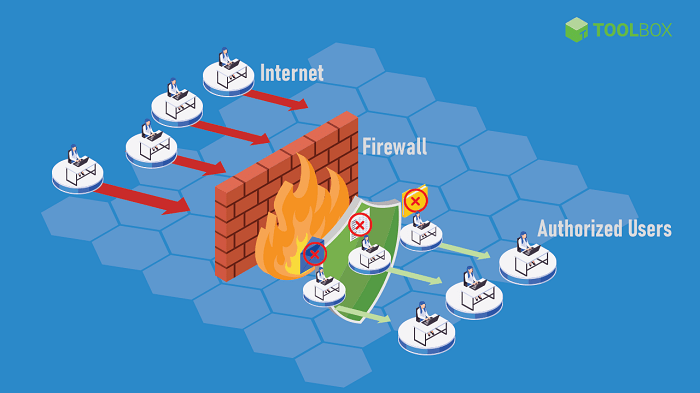
Identify Firewall Settings: Access your firewall settings through your computer’s control panel or security settings. Look for options related to program permissions, port configurations, or application-specific settings.
Allow Zoom Through Firewall: Locate Zoom in the list of programs or applications within your firewall settings. Ensure that both incoming and outgoing traffic for Zoom is allowed. You might need to add Zoom as an exception or create a rule to permit its traffic.
Check Port Configurations: Zoom typically uses specific ports for audio and video transmission. Verify that these ports are open or unblocked in your firewall settings. Commonly used ports for Zoom include 8801-8810 for audio and 8801-8820 for video.
Test the Connection: After adjusting the firewall settings, launch Zoom and initiate a test meeting to check if the audio functions properly. If issues persist, revisit the firewall settings to ensure they accurately allow Zoom traffic.
Update Security Software: Ensure that your antivirus or security software is up-to-date. Sometimes, outdated versions might conflict with Zoom’s operations.
Add Zoom as an Exception: Access your security software settings and add Zoom as a trusted or whitelisted application. This action tells the security software to exclude Zoom from its scans or interference.
Temporarily Disable Security Software: As a troubleshooting step, temporarily disable the security software or its specific features causing conflicts with Zoom. Remember to re-enable it after testing to maintain overall system protection.
Check for Conflicting Software: If you have multiple security programs installed, they might conflict with each other or Zoom. Consider uninstalling or disabling redundant security software to prevent conflicts.
Consulting Zoom Support and Forums

Seeking help from Zoom’s support : resources and community forums provides an expansive pool of knowledge and troubleshooting expertise. From the extensive documentation, video tutorials, and frequently asked questions in Zoom’s support hub to the vibrant community forums bustling with active users and moderators, there exists a wealth of collective wisdom.
Engaging with Zoom’s support : resources allows users to delve into a myriad of topics, from basic functionalities to advanced features, offering step-by-step guides and insightful tips for optimal usage. Furthermore, participating in the community forums fosters an environment of shared experiences, where users exchange anecdotes, innovative solutions, and best practices for leveraging Zoom effectively.
These forums become invaluable: arenas for collaboration, where users can pose specific queries, troubleshoot technical issues, and share their success stories. By tapping into this collective expertise, individuals not only find resolutions to their immediate concerns but also gain a deeper understanding of Zoom’s capabilities, thereby enhancing their overall user experience.
Reinstalling or Resetting Zoom

Performing a clean reinstall of Zoom: to resolve persistent audio issues involves thoroughly removing all existing Zoom software from your device before reinstalling the latest version. This process ensures a clean slate, eliminating any potential corrupted files or settings that might be causing audio problems during Zoom calls or meetings.
To initiate a clean reinstall : start by uninstalling Zoom completely from your computer or mobile device. Ensure that all associated files and folders related to Zoom are removed to prevent any remnants that could interfere with the fresh installation.
After uninstalling : it’s advisable to restart your device to clear any residual components in memory. Then, proceed to download the latest version of Zoom directly from their official website or app store. Install the application following the provided instructions, allowing the fresh installation to overwrite any potential issues from the previous installation.
Resetting Zoom settings: complements this process by restoring default configurations, eliminating any potential misconfigurations that might be causing persistent audio problems. Within the Zoom application, navigate to settings or preferences and locate the option to reset settings to their default values. Confirm the reset, and Zoom will revert to its initial settings, often resolving various audio-related glitches or abnormalities
Related Posts:
- Discovering the Lost AirPod: Comprehensive Guide on Finding Your Missing Wireless Earbud
- Comprehensive Guide: How to Test AirPod Microphone for Crystal Clear Sound Quality
- The Ultimate Compilation of Hilarious Moments: Exploring the Funniest Joe Rogan Episodes
FAQs :
Why is my Zoom audio not working suddenly?
Sudden audio issues on Zoom can stem from various factors like software updates, device conflicts, network disruptions, or permissions/settings changes. Refer to troubleshooting steps to pinpoint and resolve the issue.
How can I fix microphone problems on Zoom?
Check microphone settings, ensure proper connections, update drivers, grant necessary permissions, and test the microphone on other applications to isolate and fix microphone-related issues.
Are there known bugs causing audio problems on Zoom?
Zoom periodically addresses bugs and issues through updates. Keeping the app updated often resolves known audio problems. Check release notes for bug fixes related to audio.
Addressing Zoom audio problems requires a systematic approach encompassing various troubleshooting methods, from checking device settings to seeking assistance from official support channels. By following the outlined steps and understanding the potential causes behind the audio issues, users can effectively resolve these hiccups, ensuring a seamless and uninterrupted communication experience on Zoom.
The diverse range of solutions provided in this guide aims to empower users to tackle “Zoom audio not working” issues confidently, facilitating smoother virtual interactions and meetings for enhanced productivity and communication efficiency. Keep exploring and troubleshooting to ensure optimal audio performance on Zoom for all your virtual engagements.