

Table of Contents
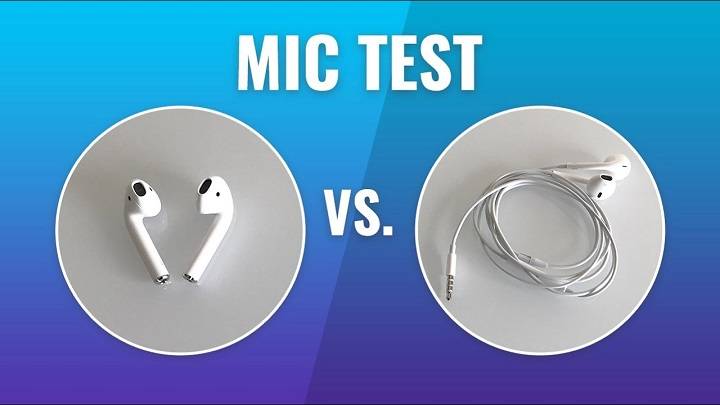
AirPods have become a quintessential accessory for music aficionados, professionals, and everyday users seeking convenient, wireless audio. Yet, one crucial aspect often overlooked is the microphone quality. Whether for calls, virtual meetings, or recording, ensuring the microphone’s efficacy is pivotal.
This comprehensive guide delves into various methods and techniques to test your AirPods’ microphone, guaranteeing optimal performance. From simple checks to advanced troubleshooting, understanding how to evaluate and enhance microphone functionality is key to enjoying seamless communication and recording experiences.
Beyond their superior audio output, Apple’s AirPods boast integrated microphones designed for impeccable voice clarity. However, factors like debris accumulation, software glitches, or hardware issues can impede microphone performance. By following the steps outlined in this guide, you’ll be equipped with the knowledge to identify and rectify any potential microphone-related problems.
Understanding AirPods Microphone Components
Voice Calls and Audio Input: AirPods employ beamforming microphones that focus on capturing the user’s voice while minimizing background noise. This allows for clear and intelligible conversations during phone calls or video chats, enhancing the overall communication experience.
Active Noise Cancellation (ANC): AirPods Pro and AirPods Max utilize an array of external and internal microphones to analyze ambient sounds continuously. This information is then used to generate anti-noise signals, effectively canceling out unwanted external noises and immersing the listener in a more serene auditory environment.
Siri Integration and Voice Commands: The microphones within AirPods enable seamless integration with Siri, Apple’s virtual assistant. Users can issue voice commands, ask questions, and control various functions of their devices without needing to access them physically.
Audio Transparency Mode: Some AirPods models feature an “Audio Transparency” or “Transparency Mode,” facilitated by the microphones. This mode allows users to remain aware of their surroundings by mixing ambient sound with the audio being played, enhancing situational awareness without removing the earbuds.
Initial Inspection: Physical Examination

the Exterior: Inspect the outer surface of your AirPods for any visible damages such as cracks, dents, or scratches. These damages could potentially impact the microphone’s performance.
Inspect the Mesh Grilles: Look closely at the microphone and speaker grilles. Ensure they are clear from debris, dust, or any obstructions. Even tiny particles could muffle or affect sound quality.
Evaluate the Charging Contacts: Examine the charging contacts for any signs of corrosion or dirt buildup. Dirty contacts might interfere with charging and subsequently affect microphone functionality.
Listening for Distorted Audio: Connect your AirPods to a device and play audio. Listen attentively for any distortions, crackling sounds, or discrepancies in the audio quality. Distorted sound might indicate issues with the microphone.
Test Call Functionality: Initiate a call using your AirPods and communicate with someone to evaluate the microphone’s performance. Ensure there are no audio disruptions or difficulties in transmitting your voice clearly.
Cleaning the AirPods: Use a soft-bristled brush or a dry cotton swab to gently clean the microphone and speaker grilles. Be cautious not to damage these components while removing debris.
Using Compressed Air: If there’s visible dust or debris within the grilles, you can carefully use compressed air to blow away any particles obstructing the microphone.
Checking Firmware Updates: Ensure your AirPods have the latest firmware installed. Sometimes, firmware updates contain fixes for audio-related issues.
Professional Assistance: If the issues persist after cleaning and updating firmware, consider contacting Apple Support or a certified technician for further assistance. They can diagnose potential hardware problems and offer solutions or repairs if necessary.
Regular Maintenance: Make it a habit to clean your AirPods regularly. Avoid exposing them to excessive moisture or extreme temperatures, as these factors could damage the internal components.
Proper Storage: Store your AirPods in their charging case when not in use. This helps protect them from physical damage and keeps them clean.
Testing Microphone on Calls and Voice Memos

Select a Suitable Environment:Choose a quiet room or space with minimal background noise to conduct the tests. Background noise can interfere with accurate microphone performance assessment.
Prepare Testing Materials:Ensure you have a reliable smartphone or a recording device with a microphone.Install or identify a voice recording app on your phone. If testing phone call quality, ensure your device has a good signal strength or use a landline if available.
Set Baseline Recording:Record a baseline audio clip in the selected environment. Speak clearly and naturally into the microphone or during the phone call. This will serve as a reference point for comparison.
Test Call Quality (if applicable):Make a test call using your smartphone to another phone or a dedicated testing number (if available). Assess the clarity, volume, and any distortion during the call.Consider testing different call scenariosLocal callsLong-distance callsSpeakerphone mode vs. regular modeUse of headphones or Bluetooth devices
Utilize Voice Recording Apps:Experiment with various voice recording apps available on your smartphone. Some features to test include.Recording quality in different formats (MP3, WAV, etc.)Sampling rates and bit depths for audio recordingNoise cancellation or reduction features
Test Microphone Sensitivity:Vary your speaking distance from the microphone. Test how well the microphone captures sound from different distances (close, moderate, and far).Try speaking softly and loudly to evaluate how the microphone handles varying volumes.
Analyze Recorded Samples:Listen to the recorded samples attentively using headphones or good-quality speakers.Pay attention to:Clarity of speechPresence of background noise or interferenceAny distortion, echoes, or artifactsConsistency in capturing sound across different scenarios
Compare and Evaluate:Compare the recorded samples to the baseline recording. Note any differences in quality, clarity, or performance across different tests.Consider creating a rating or checklist to assess and compare the performance of the microphone in different scenarios.
Document and Summarize Findings:Take notes on the microphone’s performance under various conditions. Document strengths, weaknesses, and any notable observations.
Iterate and Retest (if necessary):If unsatisfied or uncertain about results, repeat the tests with adjustments in settings, environments, or recording methodologies.
Verifying Microphone Settings on Devices
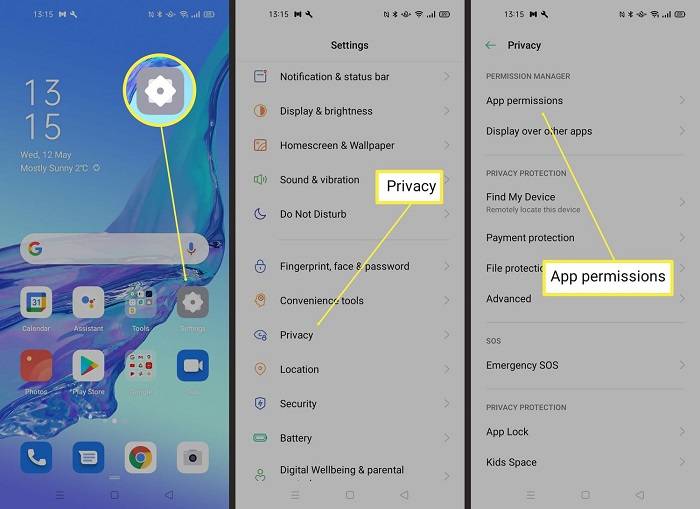
Highlighting: the importance of checking and adjusting microphone settings on connected devices for optimal output is crucial to ensure clear and high-quality audio transmission in various settings. Whether in virtual meetings, online classes, content creation, or live streaming, a properly configured microphone significantly impacts the overall communication experience.
Microphone settings : encompass a range of variables that directly influence audio quality. These settings may include adjusting input levels to prevent distortion or background noise, selecting the appropriate microphone sensitivity or gain, setting the preferred pickup pattern (such as cardioid, omnidirectional, or bidirectional), and ensuring proper placement and distance from the sound source.
Moreover: different microphones require specific configurations, and familiarity with their unique features enhances performance. For instance, condenser microphones may need phantom power, while dynamic microphones might require different handling in terms of gain settings.
Assessing Wireless Connectivity Impact
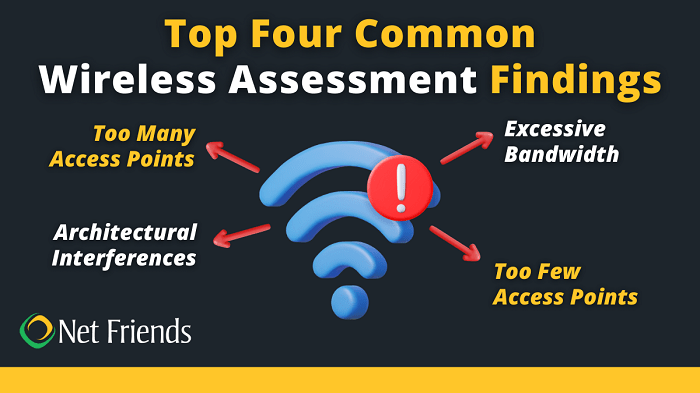
Quality of Service (QoS) Configuration: Prioritize audio traffic by configuring QoS settings on the network to ensure that voice data receives higher priority, reducing latency and ensuring a smoother audio transmission.
Bandwidth Management: Allocate sufficient bandwidth for audio transmission, preventing congestion that can cause delays or packet loss.
Signal Shielding and Grounding: Employ shielded cables and proper grounding techniques to minimize EMI/RFI interferences that can disrupt microphone signals.
Distance and Placement: Keep microphones away from potential sources of interference, such as routers, other electronic devices, or power sources. Maintaining distance can reduce the impact of electromagnetic fields on microphone performance.
Frequency Management: Choose microphones that operate on frequencies less susceptible to interference. Additionally, consider adjusting the frequency channels to avoid overlaps with nearby wireless devices.
Network Redundancy and Reliability: Implement backup network connections or redundant systems to ensure continuity in case of network failures or interruptions.
Regular Maintenance: Conduct periodic checks and maintenance of network equipment and microphones to identify and address any issues that could affect performance.
Use of Dedicated Networks: Consider setting up separate networks specifically for critical audio transmission, minimizing congestion and potential interferences from other network traffic.
Professional Consultation: Seek guidance from audio engineers, network specialists, or consultants experienced in managing network-related audio issues for specialized solutions.
Troubleshooting Common Microphone Problems
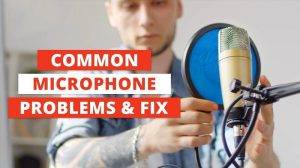
Addressing prevalent issues: such as low volume, muffled sound, or background noise is crucial for ensuring an optimal audio experience. Low volume often results from incorrect settings, hardware malfunctions, or software issues. Muffled sound can stem from microphone blockages, improper positioning, or equipment defects. Background noise, a common nuisance, can disrupt clear communication and recording quality.
Troubleshooting solutions :for low volume might involve checking device settings, ensuring cables are properly connected, or updating audio drivers. To resolve muffled sound, cleaning or repositioning the microphone, inspecting for any physical damage, or adjusting audio input settings could be beneficial. Background noise reduction techniques encompass using noise-canceling software, employing directional microphones, or optimizing recording environments by reducing ambient noise sources.
Utilizing Third-Party Apps for Testing
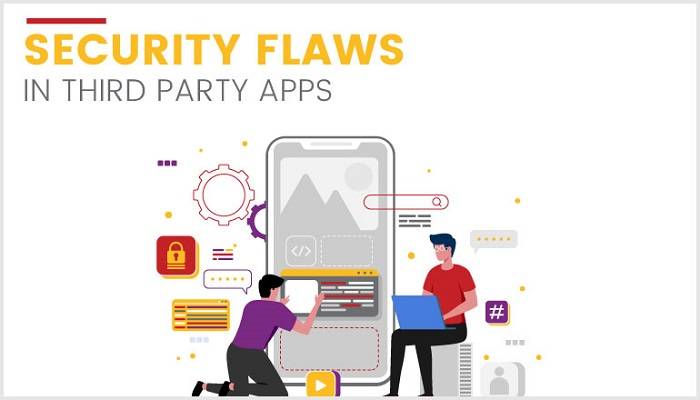
Exploring recommended :third-party applications specifically designed to assess and enhance microphone functionality can significantly improve audio quality and overall user experience across various devices. These applications offer a range of features tailored to diagnose, fine-tune, and optimize microphone performance in different environments and for diverse purposes.
Some of these third-party :apps provide comprehensive microphone testing capabilities, allowing users to conduct precise assessments of their microphone’s sensitivity, frequency response, noise cancellation, and overall audio output quality. These tests often include simulated environments to gauge microphone performance under different conditions, such as noisy surroundings or controlled soundproof settings.
Additionally :certain applications offer advanced equalization tools, allowing users to adjust audio settings to their preferences, mitigate background noise, or enhance clarity for specific recording or communication purposes. They may also provide real-time monitoring functionalities, enabling users to visualize audio input levels, identify potential issues, and make instant adjustments for optimal performance.
Moreover: these applications are not limited to diagnostics and adjustments but also extend to offering solutions for improving microphone functionality in various scenarios. For instance, some apps provide voice enhancement features, including noise suppression, echo cancellation, and voice modulation, which can be particularly useful in online meetings, gaming, content creation, or live streaming.
Cleaning and Maintenance for Improved Performance
Soft, Dry Cloth: Wipe down the exterior of your AirPods regularly with a soft, dry, lint-free cloth to remove any dirt, oil, or smudges. This prevents buildup that could affect microphone quality.Do not use liquids directly on the AirPods, as moisture could damage the internal components. If necessary, lightly dampen the cloth with water and ensure it’s not too wet.
Cleaning the Charging Case:Use a clean, dry toothbrush or a small, soft-bristled brush to gently remove dust or debris from the charging port and the case’s interior.Periodically wipe the exterior of the case with a slightly damp cloth to maintain its cleanliness.
Ear Tips and Mesh Grilles:Inspect the ear tips regularly for buildup of earwax, debris, or dirt. Remove the ear tips and gently clean them with a soft, dry cloth or a cotton swab slightly dampened with water. Let them dry completely before reattaching.The mesh grilles on the AirPods can accumulate dirt and debris, affecting microphone and sound quality. Use a soft-bristled brush or a clean, dry toothbrush to gently dislodge any buildup. Be careful not to damage the mesh.
Avoid Harsh Chemicals:Refrain from using harsh chemicals, solvents, or cleaning agents, as they can damage the delicate components of the AirPods.When not in use, store your AirPods in their case to protect them from dust, moisture, and potential damage.If you notice significant wear and tear on the ear tips or if the mesh grilles become extensively dirty and cleaning doesn’t help, consider replacing these parts following the manufacturer’s guidelines.
Regular Maintenance Schedule:Create a schedule for cleaning and maintenance, perhaps once a week or bi-weekly, to ensure consistent microphone quality and overall cleanliness of your AirPods Minimize sharing your AirPods with others to prevent the transfer of dirt, oils, or earwax, which can impact microphone performance and hygiene.Keep your AirPods updated with the latest firmware available, as updates often include performance improvements and bug fixes that can contribute to better microphone quality.
Professional Assistance:If you encounter persistent issues with microphone quality despite cleaning, consider seeking assistance from authorized service centers or Apple support for further diagnosis and potential solutions.
Compatibility and Updates
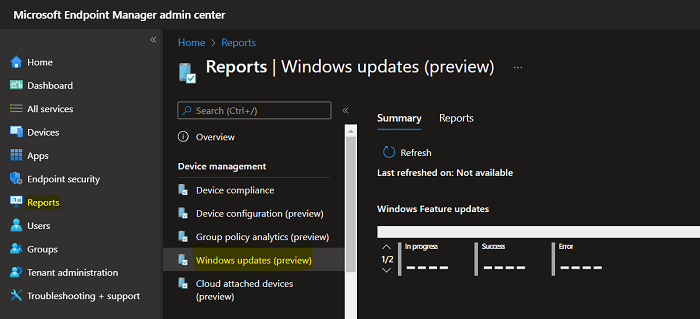
Insights into how firmware: updates and device compatibility can influence microphone performance are pivotal in understanding the dynamic nature of audio technology. Firmware updates play a crucial role in enhancing microphone functionality by addressing bugs, optimizing signal processing algorithms, and sometimes introducing new features. These updates often directly impact the microphone’s overall performance, including its sensitivity, frequency response, noise cancellation capabilities, and connectivity options.
Compatibility between devices :and firmware versions can significantly affect microphone performance. Different microphones interact with various devices—such as computers, smartphones, audio interfaces, or cameras—each having its own operating systems and specifications. A firmware update might improve a microphone’s compatibility with a wider range of devices, ensuring seamless integration and enhanced performance across multiple platforms.
Moreover, firmware updates :can resolve issues related to compatibility glitches between a microphone and certain devices. These updates may also introduce compatibility with new protocols or standards, ensuring that the microphone remains functional and efficient with evolving technology.
Conversely : the lack of firmware updates or outdated firmware can limit a microphone’s capabilities and compatibility with newer devices or software versions. This mismatch may lead to reduced performance, connectivity issues, or even incompatibility, ultimately impacting the overall user experience
Seeking Professional Assistance

Identifying the Issue: Before reaching out for help, try to pinpoint the specific problem. Is the microphone not working at all? Are there intermittent issues, or does it produce distorted sound? Providing detailed information about the problem will assist the support team in diagnosing the issue accurately.
Online Support Resources: Apple offers comprehensive online resources like support articles, forums, and troubleshooting guides on their official website. Exploring these resources might offer step-by-step instructions to address common microphone issues, potentially resolving the problem without the need for direct assistance.
Contacting Apple Support: If the issue persists, reaching out to Apple Support is recommended. You can contact them via phone, live chat, or schedule an appointment at an Apple Store or authorized service provider. Explain the steps you’ve already taken to troubleshoot, providing as much detail as possible about the problem. Apple’s support team may guide you through further troubleshooting steps or recommend the next course of action, which may include servicing or repair.
Authorized Service Providers: Apple has a network of authorized service providers that offer repair and diagnostic services for Apple devices. Visiting an authorized service provider ensures that your device is handled by trained professionals using genuine Apple parts. These providers are equipped to address more intricate hardware-related microphone issues that might require specialized tools or expertise.
Warranty and Repair Coverage: Check your device’s warranty status before seeking service. If the device is under warranty or covered by AppleCare, certain repairs might be covered without additional cost. Apple’s support team can help determine warranty coverage and guide you through the repair process if applicable.
Backup Your Data: Before sending your device for service or repair, it’s advisable to back up your data to prevent any potential loss during the repair process.
Follow-Up and Feedback: After receiving support or getting your device serviced, if the issue persists or if you have feedback, don’t hesitate to follow up. Providing feedback about the service you received helps Apple improve its support processes and ensures your issue is fully addressed.
Related Posts:
- The Ultimate Compilation of Hilarious Moments: Exploring the Funniest Joe Rogan Episodes
- How Much Do Podcasters Make: Exploring Revenue Streams, Influencing Factors, and Realistic Earnings in the Podcasting Industry
- Troubleshooting AirPods: Fixing Static Noise in One Ear – Complete Guide & Solutions
FAQs on Testing AirPod Microphone
Why is microphone testing crucial for AirPods?
Testing ensures optimal functionality for calls, recordings, and voice commands, offering a seamless user experience.
Can software updates affect microphone performance?
Yes, updates often include fixes and enhancements that may positively impact microphone quality.
How often should I clean my AirPods for optimal microphone performance?
Regular cleaning, at least once every few weeks, is advisable to prevent debris accumulation.
Ensuring your AirPods’ microphone operates at its peak is vital for seamless communication and recording experiences. By following the comprehensive steps outlined in this guide, users can troubleshoot, test, and optimize their AirPods’ microphone, guaranteeing crystal-clear sound quality. Remember, regular maintenance and staying abreast of software updates can significantly contribute to sustained microphone excellence, ultimately enhancing your overall AirPods experience.