

Table of Contents
In an era where audio content reigns supreme, podcasts have become an integral part of our daily entertainment and learning. And what better way to indulge in these immersive stories, informative discussions, and captivating narratives than through Sonos—a renowned name in the world of high-quality audio systems.
Sonos has established itself as a frontrunner in delivering exceptional sound experiences, seamlessly blending cutting-edge technology with user-friendly interfaces. With the ability to connect to various streaming services and devices, Sonos has become a favorite choice for audiophiles and casual listeners alike.
This comprehensive guide aims to walk you through the process of enjoying podcasts on Sonos, from setting up your Sonos system to accessing your favorite podcast shows effortlessly. Whether you’re a tech enthusiast or a newbie looking to dive into the world of podcasts through Sonos, this guide is tailored to assist you every step of the way.
Let’s embark on this journey to explore how you can maximize your Sonos experience by integrating podcasts into your audio setup.
Understanding the Basics of Sonos

Sonos devices represent a pinnacle in home audio systems, offering an unparalleled combination of quality, versatility, and seamless integration. At the heart of Sonos’ appeal lies its ability to transform your space into a personalized audio haven. Whether you’re a music aficionado, podcast enthusiast, or movie buff, Sonos speakers cater to diverse preferences, ensuring an immersive audio experience across various formats.
Sonos speakers are engineered to support an extensive array of audio formats, accommodating everything from standard MP3s to high-resolution FLAC files. This compatibility extends to streaming services, ensuring effortless access to popular platforms like Spotify, Apple Music, Tidal, and more. Additionally, the Sonos ecosystem integrates with voice assistants such as Amazon Alexa and Google Assistant, further enhancing convenience by allowing users to control their audio setup using simple voice commands.
The versatility of Sonos devices transcends traditional boundaries. They can be utilized as standalone speakers or seamlessly integrated into a multi-room setup, providing synchronized audio playback throughout your home. The Sonos app serves as the control center, offering intuitive management of speakers, allowing users to adjust volume levels, create playlists, and control individual or grouped speakers effortlessly.
Moreover, Sonos speakers are not limited to indoor use. With weather-resistant options like the Sonos Move, users can enjoy high-quality audio in outdoor settings, ensuring a seamless transition from the living room to the backyard for gatherings or relaxation.
The ecosystem’s modularity also allows for expansion and customization, enabling users to start with a single speaker and gradually build a comprehensive multi-room audio system by adding more speakers or soundbars, creating a tailored setup that suits their specific needs and preferences.
Setting Up Your Sonos System
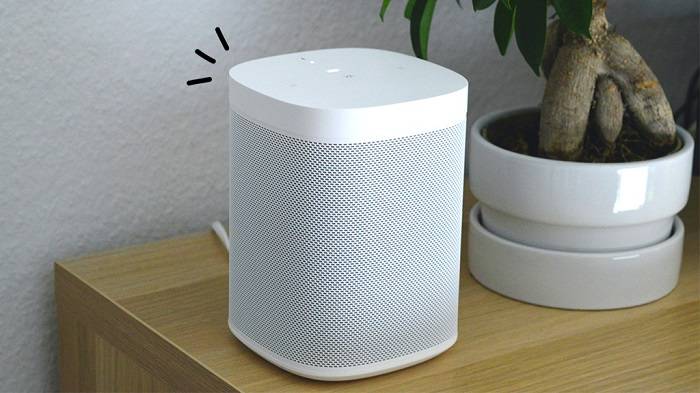
Setting Up Sonos Speakers Unboxing and Placement Unbox your Sonos speaker(s) and place them strategically in your desired locations. Ensure they have access to power outlets.Powering On Plug in your Sonos speakers and wait for them to power up. Most Sonos speakers have an indicator light that will signal when they’re ready.Download Sonos App Download the Sonos app from the App Store (for iOS) or Google Play Store (for Android). Ensure your mobile device is connected to the same Wi-Fi network you plan to use for Sonos.
Setting Up in Sonos App Open the Sonos app and follow the on-screen instructions to set up your speakers.The app will guide you through the process of connecting your Sonos speakers to your Wi-Fi network. Make sure to select the correct network and enter the password when prompted.
Adding Speakers If you have multiple Sonos speakers, you can set them up individually or as a group to play synchronized music throughout your home.To add more speakers, access the “Settings” in the Sonos app and select “Add Speakers” or “Connect to an existing system.”Trueplay Tuning (optional)Use the Trueplay feature (available on certain Sonos speakers) to optimize sound quality by analyzing the acoustics of the room. Follow the instructions in the app to perform Trueplay tuning.
Exploring the Sonos App Functionalities. Music Services IntegrationThe Sonos app integrates with various music streaming services like Spotify, Apple Music, Amazon Music, etc. Link your accounts in the app to access your playlists, albums, and personalized recommendations.
Room ControlControl each Sonos speaker separately or group them together by rooms for synchronized playback. Adjust volume, play, pause, skip tracks, or mute speakers individually or collectively. Create Playlists and QueuesCreate playlists directly in the Sonos app by queuing up songs from different music services. Arrange tracks and save them as custom playlists for easy access.
Sonos Radio and Podcasts Explore Sonos Radio for curated stations and exclusive content. Access podcasts from various providers within the app and enjoy them on your Sonos speakers. Voice Control Integration Some Sonos speakers support voice assistants like Amazon Alexa or Google Assistant. Set up voice control through the Sonos app to manage your music hands-free.
Software Updates and Settings Check for software updates regularly in the Sonos app to ensure your speakers have the latest features and improvements. Customize settings like EQ adjustments, alarms, sleep timers, and more from the app’s settings menu.
Troubleshooting and Support The Sonos app provides troubleshooting guides and customer support options in case you encounter any issues with your speakers or the app itself.Integrating popular podcast platforms with your Sonos systemDiscovering the diverse genres and categories available for podcast streaming
Playing Podcasts on Sonos
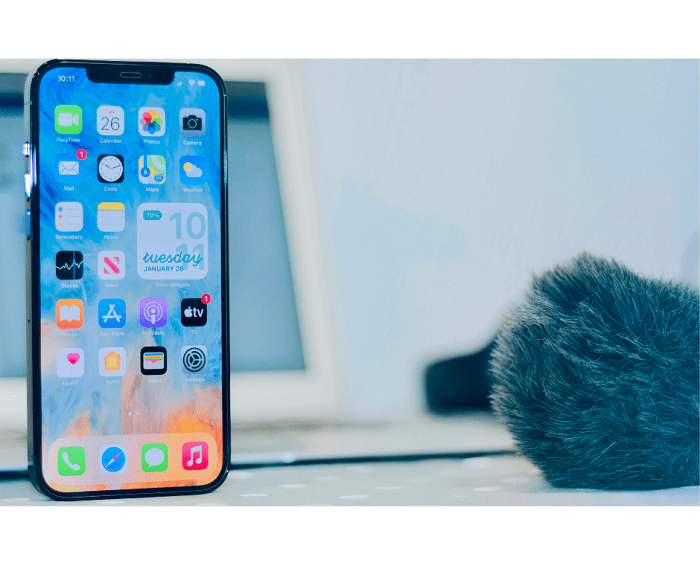
Navigating through the Sonos app to find and play your favorite podcasts is a streamlined and user-friendly process. Upon opening the Sonos app, you can access the podcast section by tapping on the “Browse” or “Search” option, depending on your preference. Once there, you’ll discover an extensive library of podcasts categorized by genres, popularity, or recommendations, allowing you to easily explore and discover new content aligned with your interests.
When you’ve found a podcast you’d like to listen to, simply select it to access its episodes. The app typically displays a list of available episodes, allowing you to choose the specific one you want. You can also subscribe to your preferred podcasts, ensuring you never miss an episode.
Playback controls in the Sonos app offer a range of functionalities to tailor your listening experience. While playing a podcast, you can pause, play, skip forward or backward, adjust playback speed, and set a sleep timer for hands-free listening before bedtime. The app also provides the option to create queues or playlists, organizing episodes for uninterrupted playback.
Moreover, Sonos offers various customization options to enhance your podcast experience. You can adjust equalizer settings to fine-tune audio output, ensuring optimal sound quality based on your preferences. Additionally, the app may provide features like crossfade, volume normalization, and speech enhancement, allowing you to personalize the listening experience to suit your taste and environment.
For those with multiple Sonos speakers, the app allows you to control where you want the podcast to play. You can choose to play the podcast on a single speaker or sync playback across multiple speakers throughout your home for a seamless and immersive listening experience in every room.
Furthermore, the Sonos app often integrates with other platforms and services, enabling easy access to podcasts from various sources, including popular streaming platforms and content providers. This integration ensures a comprehensive library of podcasts within the Sonos ecosystem, simplifying the discovery and playback of your favorite shows, regardless of their hosting platform.
Organizing Your Podcasts

Curate Playlists by Themes or Topics: Consider organizing podcasts into playlists based on themes or topics. For example, create playlists for true crime, technology discussions, motivational talks, or comedy shows. This categorization can help you easily find podcasts based on your mood or interests.
Customize Queue Order: Sonos allows you to queue up episodes in a specific order. Take advantage of this feature by arranging episodes in a sequence that makes sense for you. You might prefer listening to a series in chronological order or prioritize certain episodes over others.
Queue Management: While listening to a podcast, explore the options to add episodes to the queue or save them for later. This allows you to maintain a dynamic queue that reflects your immediate listening preferences.
Create Smart Playlists: Leverage Sonos’ smart playlist feature, if available, to automatically populate playlists based on criteria like release date, episode duration, or podcast category. This can save time and keep your playlists updated with the latest episodes.
Utilize Podcast Services Integration: Some podcast platforms or apps offer integration with Sonos. Utilize this feature to seamlessly access your subscribed podcasts directly through Sonos, ensuring that your listening experience remains synchronized across different platforms.
Personalize Listening Profiles: If Sonos supports multiple user profiles, consider setting up personalized profiles. This allows each user to maintain their own queues and playlists, tailored to their individual preferences.
Playback Settings and Speed: Explore playback settings on Sonos to adjust playback speed or configure settings like skipping intervals. Customizing these settings can enhance your listening experience, especially if you prefer faster playback or want to skip intros or outros of episodes.
Regularly Update and Refresh Playlists: Periodically review and update your playlists. Remove episodes you’ve already listened to, add new favorites, or reorganize based on changing interests. This keeps your listening experience fresh and avoids cluttering your queues with outdated episodes.
Sync Across Devices: If you use multiple devices to listen to podcasts, ensure they’re synced with your Sonos system. This ensures that your playlists, queues, and listened episodes are consistent across all devices for a seamless transition between different listening environments.
Experiment and Explore Features: Sonos continually updates its system and app features. Stay curious and explore new updates or features that might enhance your podcast listening experience. Sonos might introduce new functionalities that could further optimize playlist creation and queue management for podcasts.
Voice Control and Smart Features

Utilizing voice assistants such as Amazon Alexa or Google Assistant for hands-free control of podcasts on Sonos offers a convenient and seamless way to manage your audio experience. With these voice-activated platforms integrated into Sonos, users can simply issue voice commands to play, pause, skip, or adjust the volume of their favorite podcasts without needing to physically interact with their devices. This hands-free control enhances accessibility, especially while engaged in other activities or when your hands are occupied.
Moreover, beyond basic playback controls, smart features continue to evolve, allowing for a more personalized and streamlined podcast listening experience. For instance, these voice assistants paired with Sonos can offer customized recommendations based on listening history or preferences, suggesting new podcasts or episodes aligned with your interests. Additionally, users may set reminders for upcoming podcast releases, create personalized playlists, or even ask for contextual information related to the content being played, enhancing engagement and immersion.
Furthermore, the integration of smart home technology with Sonos and voice assistants opens doors to automation and synchronization. Users can schedule podcast playback at specific times, integrate it into their daily routines, or link it with other smart devices in their homes. For instance, imagine your morning routine triggering the start of your favorite news podcast as you prepare breakfast, with the volume automatically adjusting as you move from room to room.
Syncing and Multi-room Listening
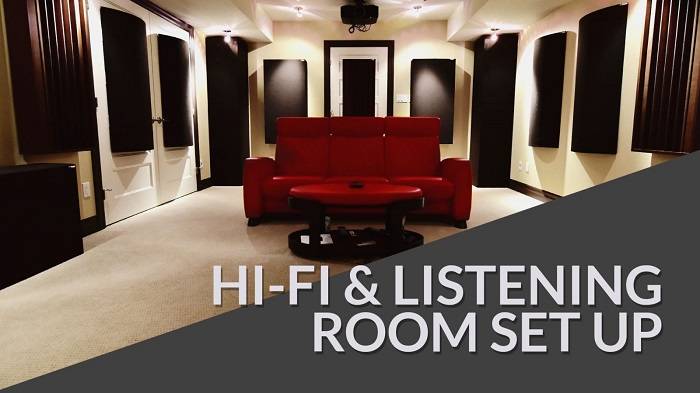
Sonos employs a proprietary technology known as “Trueplay” that ensures synchronized audio playback across multiple rooms, offering a seamless and consistent listening experience. Trueplay utilizes a combination of hardware and software to analyze the acoustic properties of each room where Sonos speakers are placed. By employing the microphone in a user’s smartphone or tablet, Trueplay detects the unique sound reflections, room size, and furnishings, then fine-tunes the speaker’s output to optimize audio quality in that specific environment. This technology significantly contributes to maintaining synchronization between speakers, preventing delays or discrepancies in audio playback as users move from one room to another.
When it comes to podcasts, Sonos users can leverage this synchronization capability to enjoy their favorite podcasts in different rooms simultaneously. Whether it’s catching up on the latest news, listening to educational content, or enjoying entertainment podcasts, Sonos’ multi-room audio feature allows users to start playback in one room and seamlessly extend it to other areas within their home. This flexibility enables a household to cater to diverse listening preferences, ensuring everyone can enjoy their preferred podcast content in their respective spaces without missing a beat.
Furthermore, Sonos’ intuitive app interface facilitates effortless control over multi-room audio playback. Users can easily group speakers together, adjust volume levels, and manage podcast playlists across different rooms via the Sonos app on their smartphones, tablets, or computers. This level of convenience and customization adds to the overall appeal of using Sonos speakers for a multi-room podcast listening experience.
Common Issues and Solutions

Playback Interruptions or Buffering: Solution Ensure the podcast service or app you’re using is compatible with Sonos. Confirm your Sonos system is updated to the latest firmware version. Restart the Sonos app or device and reinitiate the podcast playback.
Volume Issues: Syncing Problems Between Sonos Speakers Solution Make sure all your Sonos speakers are updated to the latest software version. Restart the speakers and reconfigure the multi-room setup within the Sonos app. Confirm that all speakers are connected to the same Wi-Fi network.
Inability to Find Specific Podcasts:Solution: Some podcasts might not be available directly through the Sonos app. Use the supported podcast services like Apple Podcasts, Spotify, or other compatible apps on Sonos. Search and add the podcast to your library within these apps and then access them through Sonos.
Check your internet connection: a stable connection is crucial for uninterrupted playback. Restart your router or move closer to it for better signal strength. Additionally, reduce the number of devices connected to your network to improve bandwidth for Sonos Verify the volume settings on both the Sonos app and your device. Sometimes, individual podcast episodes might have varying audio levels. Adjust the volume within the app or on the device to achieve a suitable level.This might occur due to a weak Wi-Fi signal or interference. Move your Sonos device closer to the router or consider using a Sonos Boost to strengthen the signal. Also, check for possible obstructions or interference-causing devices nearby. Check if the Sonos device is experiencing any overheating issues. Ensure proper ventilation and a cool environment for the device. Clear the cache or data of the Sonos app and restart your device.
Future of Podcasts on Sonos
Enhanced Discovery and Personalization: Sonos is expected to introduce improved discovery features to help users easily find podcasts aligned with their interests. This could include personalized recommendations based on listening history, curated playlists, or advanced search functionalities.
Exclusive Content and Partnerships: Collaborations with podcast creators and platforms might lead to exclusive content available only on Sonos devices. Such partnerships could include early access to episodes, unique bonus content, or even original shows tailored specifically for the Sonos ecosystem.
Voice Control and Smart Assistant Integration: Integration with popular smart assistants like Amazon Alexa, Google Assistant, or Apple’s Siri could further streamline the podcast listening experience on Sonos. Users might have the ability to control playback, discover new shows, or manage their podcast library using voice commands.
Improved Cross-Platform Syncing: Seamless synchronization across various devices and platforms is likely to be a key focus. Sonos may develop features that enable users to seamlessly switch between listening on their smartphones, computers, and Sonos speakers without losing their playback progress.
Advanced Audio Enhancement: Sonos has always been known for its superior sound quality. Future advancements might include audio enhancements specifically tailored for podcasts, such as immersive spatial audio, dynamic EQ adjustments, or customizable audio profiles.
- Ultimate Guide: Are AirPods Waterproof? Understanding Their Water Resistance and Usage in Different Environments
- The Evolution and Controversies: Exploring What Happened to Joe Rogan’s Podcast
- Unveiling the Origins and Impact of the First Podcast Ever: A Comprehensive Dive into the Birth of Audio Revolution
FAQs:
Can I listen to podcasts for free on Sonos?
Yes, Sonos allows access to various free podcast platforms like Spotify, Apple Podcasts, Google Podcasts, and more.
Can I use voice commands to play podcasts on Sonos?
Absolutely! With voice assistants like Amazon Alexa or Google Assistant, you can effortlessly control your podcast playback on Sonos using voice commands.
Are all Sonos speakers compatible with podcast streaming?
Yes, most Sonos speakers, including the Sonos One, Sonos Move, Sonos Five, and others, are compatible with podcast streaming.
How can I discover new podcasts on Sonos?
The Sonos app features a “Browse” section where you can explore trending, popular, and recommended podcasts across various genres.
Can I listen to podcasts simultaneously on different Sonos speakers?
Yes, Sonos supports multi-room listening, allowing you to sync and play podcasts on different speakers throughout your home.
The integration of podcasts into the Sonos ecosystem opens a world of endless audio possibilities. With its user-friendly interface, extensive compatibility, and immersive sound quality, Sonos provides an unparalleled experience for podcast enthusiasts.