


Table of Contents
Setting up a top-notch microphone for streaming isn’t just about getting the gear; it’s about crafting an immersive audio experience for your audience. Whether you’re a budding streamer or a seasoned content creator, nailing your mic setup can significantly enhance the quality of your streams. The right microphone setup ensures crystal-clear audio, captivating your viewers and keeping them engaged.
Understanding the Importance of a Quality Streamer Mic Setup
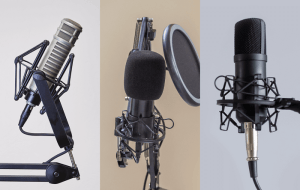
A quality streamer mic setup isn’t just about sound; it’s about crafting an immersive and professional experience for your audience. The microphone you choose, along with its accompanying accessories and setup, holds the power to elevate your content to new heights and make a lasting impression.
Firstly, the microphone itself plays a pivotal role. Different microphones offer varying features, such as dynamic range, frequency response, and polar patterns, which can significantly impact the quality and tone of your audio. For instance, condenser microphones are renowned for their sensitivity and ability to capture nuanced sounds, making them ideal for capturing vocals and detailed audio. Dynamic microphones, on the other hand, excel in handling louder sounds and minimizing background noise, making them suitable for energetic performances or streaming in noisy environments.
Accessories further enhance the functionality and performance of your microphone. A shock mount can isolate the microphone from vibrations and handling noise, ensuring a cleaner audio output. Pop filters help in reducing plosives and unwanted breath sounds, enhancing clarity during vocal recordings. Boom arms provide flexibility and convenience in positioning the microphone for optimal sound capture while keeping your setup clutter-free.
Additionally, the setup of your microphone and accessories can significantly impact the overall quality of your audio. Proper placement of the microphone, whether it’s mounted on a stand or a boom arm, ensures optimal proximity and angle for capturing your voice or instrument. Correct gain settings and monitoring through headphones allow you to fine-tune the audio levels and maintain consistency throughout your stream or recording.
Moreover, a well-crafted audio experience isn’t just about the microphone itself but also about how it integrates with your streaming software or hardware. Understanding the technical aspects of your streaming platform, adjusting audio settings, and utilizing filters or plugins can further refine the sound and create a more polished final product.
Types of Microphones for Streaming
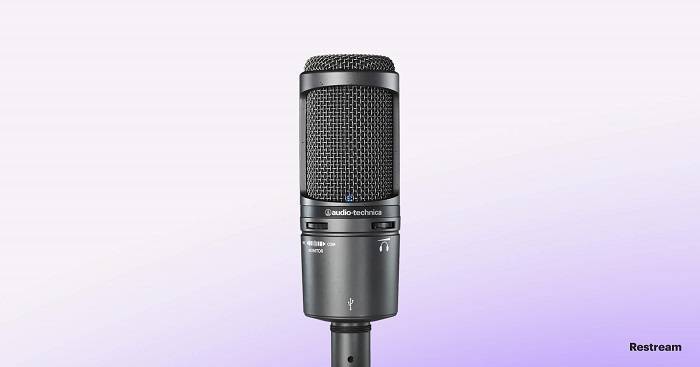
Dynamic Microphones Known for their durability and ability to handle high sound pressure levels, dynamic microphones are a popular choice for streaming, especially in environments with background noise. They are less sensitive compared to condenser mics and are ideal for capturing clear vocals while minimizing ambient sounds.
Condenser Microphones Offering superior sensitivity and a broader frequency range, condenser mics excel in capturing nuanced audio details. They’re great for studio-quality sound, making them a preferred choice for professional streamers or those aiming for higher audio fidelity. However, they can be more sensitive to surrounding noise.
USB Microphones These mics come with built-in analog-to-digital converters, allowing direct connection to your computer via USB. They are incredibly convenient for beginners or those seeking a hassle-free setup, as they eliminate the need for additional audio interfaces or mixers. USB mics often provide good quality and simplicity.
XLR Microphones Typically used by professional streamers or content creators, XLR microphones require an audio interface or mixer for connectivity, offering greater control over audio adjustments such as gain, EQ, and phantom power. XLR connections are known for their reliability, stability, and ability to transmit higher-quality audio signals compared to USB.
Shotgun Microphones These highly directional microphones are excellent for capturing sound from a specific direction while rejecting ambient noise. They’re commonly used in filmmaking but can be beneficial for streaming setups, especially in noisy environments where precise sound isolation is necessary.
Lavalier Microphones (Lav Mics) These are small, clip-on microphones commonly used in broadcasting and interviews. They offer hands-free operation and are suitable for streamers who prefer to move around during their broadcasts while maintaining consistent audio quality.
Choosing the Right Microphone for Your Setup
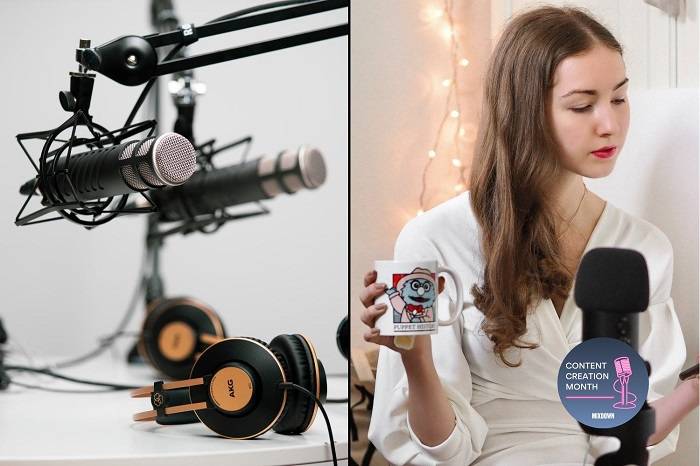
Microphone Type There are different types of microphones, such as condenser, dynamic, and ribbon mics, each with its own strengths. Condenser microphones are sensitive and capture a wide range of frequencies, making them ideal for capturing subtle nuances in vocals or instruments. Dynamic microphones, on the other hand, are more robust and handle high sound pressure levels, making them suitable for louder environments. Ribbon mics excel in capturing natural, warm tones.
Directionality (Polar Patterns) Polar patterns determine how a microphone captures sound. Cardioid patterns are commonly used for streaming as they focus on capturing sound from the front while minimizing background noise from the sides and rear. However, depending on your setup and environment, other patterns like omnidirectional or bidirectional might be more suitable.
Frequency Response A microphone’s frequency response indicates the range of frequencies it can capture. A flat frequency response is often preferred for accurate sound reproduction, but some microphones may emphasize certain frequencies for specific applications, such as boosting bass for voiceovers or reducing sibilance for vocals.
Connectivity Options Consider the compatibility of the microphone with your streaming setup. USB microphones offer plug-and-play convenience and are suitable for beginners or those without audio interfaces. XLR microphones, requiring an audio interface or mixer, often provide higher audio quality and more control over settings.
Build Quality and Durability Look for microphones made from durable materials that can withstand regular use. A sturdy build ensures longevity and reliability, especially if you plan on transporting or using the microphone frequently.
Accessories and Additional Features Some microphones come with useful accessories like shock mounts, pop filters, or adjustable stands that can enhance your streaming experience. Additionally, features such as built-in headphone jacks for zero-latency monitoring or onboard gain control can be beneficial.
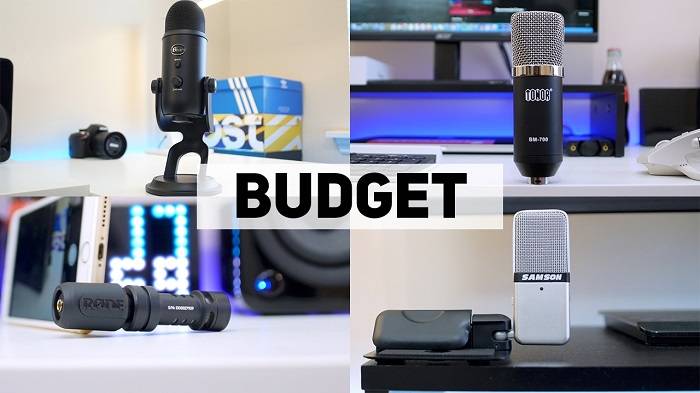
Budget Considerations Determine a budget range that aligns with your needs and preferences. There’s a wide spectrum of microphones available at various price points, and while cost can often reflect quality, there are also excellent options available within lower budget ranges.
Essential Accessories for Optimal Sound Quality
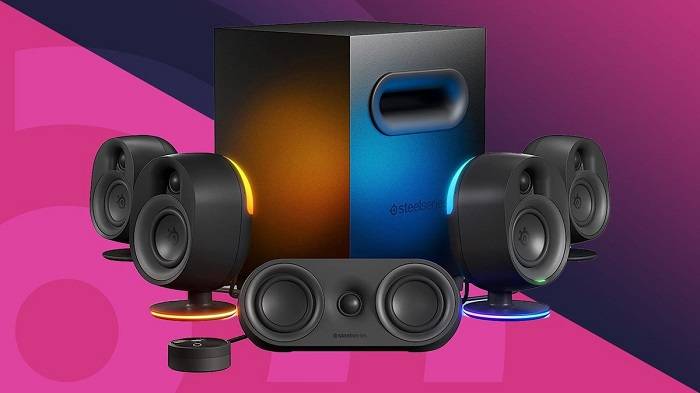
Pop Filters These are essential to minimize plosive sounds (like ‘p’ and ‘b’ sounds) that can create unwanted bursts of air hitting the microphone. Pop filters consist of a mesh screen that disperses airflow, preventing these sounds from distorting the recording.
Shock Mounts These accessories isolate the microphone from vibrations and physical disturbances. They typically use elastic bands or suspensions to hold the microphone, effectively reducing handling noise and eliminating unwanted rumble or vibrations that might occur if the microphone is placed on a desk or stand.
Boom Arms Ideal for flexible positioning, boom arms provide a convenient way to adjust the microphone’s placement. They can be mounted on desks or stands and allow you to position the microphone closer or farther from the sound source easily. This flexibility is especially useful for podcasters, streamers, or voice-over artists who need dynamic control over their microphone’s placement.
Windshields or Foam Covers These accessories act similarly to pop filters but are designed to protect against light wind noise or breath sounds. They are often used outdoors or in settings where air movement might interfere with the recording.
Microphone Stands While boom arms are a type of microphone stand, there are various other types available. Desk stands, floor stands, and tripod stands provide stability and convenience in different settings. Choosing the right stand depends on your recording environment and preferences.
Cables and Connectors Often overlooked but crucial, using high-quality cables and connectors ensures a clean signal transfer and minimizes interference or signal loss, maintaining audio integrity.
Preamps and Audio Interfaces Though not direct accessories for the microphone itself, these devices are often necessary to connect your microphone to a computer or recording device. They can also enhance the microphone’s signal quality, providing better control over audio levels and quality.
Storage and Carrying Cases To protect your microphone from dust, moisture, or accidental damage, investing in a suitable storage or carrying case is advisable, especially for portable microphones.
Setting Up Your Streamer Microphone: Step-by-Step Guide
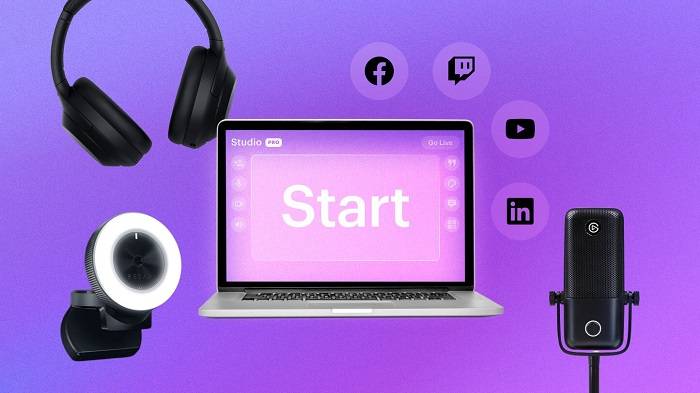
Physical Setup Place the microphone on a stable surface or use a boom arm for flexibility.For condenser microphones, a shock mount can reduce vibrations and handling noise.Position the microphone about 6-12 inches away from your mouth for optimal clarity.Connect the microphone to your computer using the appropriate cables (XLR, USB, etc.).
Gain Adjustment Adjust the gain knob on your audio interface or the microphone itself to set the input level. Aim for a healthy signal without peaking (clipping) or being too quiet.Open your computer’s audio settings and adjust the input level there as well, ensuring it complements the hardware gain for a balanced audio signal.
Software Configurations Access your system sound settings to check microphone levels and adjust as needed.Windows users can navigate to the Sound Control Panel, while Mac users can use the System Preferences > Sound.Access your Twitch dashboard.Go to Settings > Stream and select the microphone from the dropdown menu.In YouTube Studio, go to the Live Control Room.Select ‘Change’ under the microphone/audio settings and choose your microphone.Open your streaming software.Access audio settings or mixer settings to choose your microphone as the audio source.
Testing and Adjustments Use your streaming software’s test recording function to ensure the microphone is capturing audio properly.Keep an eye on your microphone levels while speaking or streaming. Adjust gain settings if needed to prevent distortion or overly low volume.Consider using filters or plugins within your streaming software to reduce background noise, enhance voice clarity, or add effects if desired.
Troubleshooting Ensure all cables are properly connected to avoid any technical issues.Make sure your microphone drivers and streaming software are updated to the latest versions for optimal performance
Optimizing Audio for Streaming Platforms
Microphone Selection Choosing the right microphone tailored to your content and environment is key. Dynamic microphones are great for reducing background noise in louder environments, while condenser microphones excel in capturing more detail in controlled settings.
Equalization (EQ) Adjusting the EQ settings can significantly enhance the clarity and warmth of your voice. Tweaking frequencies to reduce harshness or muddiness can make your voice more pleasant to listen to.
Compression Applying compression helps balance the loud and soft parts of your audio, making it more consistent and easier to listen to, especially when there are sudden volume changes.
Noise Reduction Eliminating background noise or unwanted sounds can greatly improve the overall audio quality. Using software or hardware-based noise reduction tools can help in achieving this.
Mastering This involves the final touches to your audio, such as applying subtle effects or enhancements to polish the sound and make it more professional.
Troubleshooting Common Mic Setup Issues
Background Noise and Unwanted Sound Pickup One of the most common problems is picking up unwanted sounds like keyboard clicks, fan noise, or room echo.Troubleshooting:Noise Reduction Filters: Use noise suppression software or hardware filters like noise gates or pop filters to minimize unwanted background noise.Mic Placement: Adjust the microphone’s position and distance from the noise source. Consider a boom arm or shock mount to isolate the mic from vibrations.
Low Audio Quality or Muffled Sound:Issue Poor audio quality that sounds muffled, distant, or lacks clarity.Troubleshooting Check Connections Ensure all cables are securely connected and the microphone is properly plugged in.Settings Adjustment: Adjust microphone input levels, sample rates, or bitrate in software settings to optimize sound quality.Upgrade Equipment: Consider upgrading to a better quality microphone or investing in a preamp or audio interface for clearer sound.
Interference or Electrical HumIssue Unwanted buzzing or humming noises in the audio signal.Troubleshooting Grounding Issues: Use grounded outlets and separate audio equipment from electrical sources to prevent interference.Shield Cables Ensure cables are shielded properly and not running parallel to power cables, which can cause interference.
Plosives and Sibilance:Issue Harsh sounds like ‘pops’ and ‘s’ sounds that are exaggerated or overwhelming.Troubleshooting Use Pop Filters Attach a pop filter or windscreen to the microphone to reduce plosives and sibilance.Mic Technique Position the microphone slightly off-axis and adjust speaking angles to minimize harsh sounds.
Mic Not Recognized or Not Working Issue The microphone is not detected by the streaming software or computer.Troubleshooting Check Device Settings Ensure the microphone is selected as the default input device in system settings.Driver Updates Update or reinstall the microphone drivers and check for any firmware updates for the microphone.
Latency or Delay in Audio Issue Audio lag or delay between speaking and the audio being heard in the stream.Troubleshooting Reduce Buffer Size Adjust buffer size in audio settings to reduce latency.Hardware Upgrade Upgrade to a faster audio interface or sound card to reduce latency issues.
Distorted or Clipping Audio Issue Sound that is too loud or distorted, causing clipping or crackling.Troubleshooting Adjust Gain Levels: Lower the microphone’s gain or input levels to prevent distortion.Use Compression: Apply dynamic compression to the audio signal to control peaks and prevent clipping.
DIY Mic Solutions and Budget-Friendly Alternatives
DIY Soundproofing Enhance audio quality by creating your own soundproofing solutions using inexpensive materials like egg cartons, foam panels, or moving blankets. Strategically placing these around your streaming area can minimize echo and external noise interference.
Microphone Upgrades While professional-grade microphones can be costly, there are hidden gems in the mid-range price category that offer excellent audio quality. Explore reviews and comparisons to find a microphone that suits your needs without breaking the bank.
Audio Software Tweaks Utilize free or low-cost audio editing software to enhance your sound. Filters, equalizers, and noise reduction tools can significantly improve the clarity and quality of your audio output.
Smart Cable Management Organizing cables not only improves the aesthetics of your setup but can also prevent interference and signal degradation. DIY cable management solutions using Velcro straps, cable clips, or even repurposing household items can keep your setup tidy.
Repurposing Equipment Consider repurposing equipment you already own. Sometimes, a simple adjustment or combination of tools can drastically improve performance. For instance, using smartphone apps as secondary cameras or audio sources can add depth to your streams without additional expenses.
Community Resources and Forums Engage with online communities, forums, and social media groups dedicated to streaming. You’ll find a wealth of knowledge, tips, and recommendations from experienced streamers who have found creative, budget-friendly solutions.
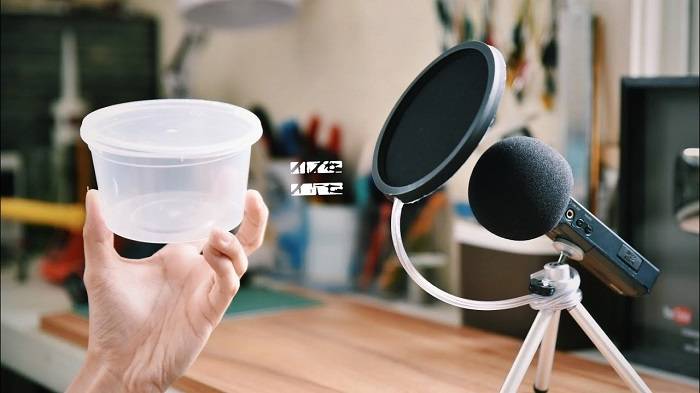
DIY Pop Filters and Mic Stands Create your own pop filters using old stockings or fabric hoops to reduce plosives when speaking into the microphone. DIY microphone stands or mounts can also be crafted from household items like PVC pipes or desk lamps to save on costs.
Learning and Skill Development Invest time in learning about audio production and streaming techniques. Understanding the basics can help you optimize your existing setup without spending extra money.
Secondhand Market Explore the secondhand market for lightly used equipment. Many streamers upgrade their gear regularly, so you might find quality tools at a fraction of the original cost.
Comparison Shopping and Deals Keep an eye out for sales, discounts, and bundle deals on audio equipment. Compare prices across different platforms and consider off-brand options that offer similar features to higher-end products.
Advanced Techniques for Professional Audio Quality
Moreover, delving into advanced audio processing techniques such as noise gating, compression, equalization, and reverb can fine-tune your sound output. Noise gating helps eliminate unwanted background noises during silent intervals, while compression evens out the audio levels, ensuring consistent sound across different segments of your stream. Equalization allows you to adjust frequencies, enhancing specific aspects of your voice or sound effects. Reverb can add depth and ambiance to your audio, creating a more immersive environment for your audience.
Creating studio-grade soundscapes involves combining these techniques with high-quality audio equipment such as professional-grade microphones, audio interfaces, and digital audio workstations (DAWs). Investing in top-notch gear can significantly elevate the overall sound quality of your streams, providing a professional touch that captivates and retains viewers.
Maintaining and Upgrading Your Streamer Mic Setup
Regular Maintenance Dust and dirt can accumulate on your equipment, affecting performance. Regularly clean your streaming setup, including your computer, peripherals, and streaming gear, using appropriate tools like microfiber cloths and compressed air.Ensure proper airflow around your devices to prevent overheating. Consider using cooling pads or fans to regulate temperatures, especially for gaming consoles or PCs.
Software Updates and Maintenance Regularly update your streaming software, drivers, and operating system to access new features, bug fixes, and security patches. This can improve stability and performance. Explore and fine-tune settings within your streaming software and hardware to achieve the best performance without overtaxing your system.
Equipment Longevity Invest in high-quality, durable equipment from reputable brands. Quality gear often lasts longer and performs better than cheaper alternatives. Treat your equipment with care. Avoid sudden shocks, spills, or mishandling that could damage sensitive components.
Upgrading for Enhanced Streaming Assess if your current setup meets your streaming needs. If you’re experiencing lags, poor video quality, or limitations in handling newer streaming formats, it might be time to consider an upgrade. Identify the weakest link in your setup (e.g., CPU, GPU, internet speed) causing limitations. Upgrading that specific component can significantly enhance your streaming experience. Consider upgrading if there are new technologies or features (e.g., 4K streaming, better encoding capabilities) that can elevate your content quality and reach.
Budget and Planning Create a budget and prioritize upgrades based on their impact on your streaming experience. Determine which upgrades will provide the most noticeable improvements. Anticipate future needs and advancements in streaming technology when considering upgrades. Investing in slightly more powerful equipment can extend its useful life.
Related Posts:
- Troubleshooting Guide: Why Your AirPods Case May Not Be Charging Properly and How to Fix It
- Unlocking the Power of Spotify Podcast Stats: A Comprehensive Guide to Understanding and Utilizing Podcast Analytics on Spotify
- Are Podcasts Considered Screen Time? Understanding the Impact of Audio Content on Screen Time Limits
FAQs:
“Do I need an expensive microphone for streaming?”
Clarify the correlation between microphone price and quality, emphasizing that budget-friendly options can still yield excellent results.
“How do I reduce background noise in my streams?”
Discuss the use of noise gates, acoustic treatment, and mic placement to minimize unwanted background noise.
“Can I use a gaming headset mic for streaming?”
Explain the limitations of gaming headset microphones and suggest alternatives for improved audio quality.
A well-crafted streamer mic setup is the unsung hero of a captivating stream. By understanding the nuances of different microphones, accessories, and setup techniques, you can transform your streaming audio quality from good to outstanding. Invest time in learning, experimenting, and fine-tuning your setup to create an immersive experience that keeps your audience coming back for more.