

Table of Contents
In the dynamic world of audio editing, achieving pristine sound quality is a pursuit that every content creator, musician, or podcaster embarks upon. One of the essential tools in this quest is Audacity, a powerful and versatile open-source audio software. Within Audacity, the noise reduction feature stands out as a game-changer, allowing users to eliminate unwanted background noise and enhance the overall audio experience.
In this comprehensive guide, we delve deep into the nuances of Audacity noise reduction techniques, providing you with insights, tips, and tricks to elevate your audio projects.
Understanding Audacity Noise Reduction

Audacity’s noise reduction feature is a powerful tool that allows users to enhance the quality of their audio recordings by minimizing unwanted background noise. Understanding how this feature works involves delving into the intricacies of audio processing and noise identification.
There are various types of noise that can compromise the clarity of audio recordings. Common examples include white noise, which is a random signal with a constant power spectral density, and background hum or hiss, often introduced during the recording process. Audacity employs sophisticated algorithms to identify these unwanted elements within the audio file.
The noise reduction process in Audacity typically involves a two-step approach: noise profiling and noise reduction. During the first step, the tool analyzes a portion of the audio that contains only the background noise. This section is used as a reference to create a noise profile, essentially a fingerprint of the unwanted sounds. Audacity then applies this profile to the entire audio file to identify and isolate the noise.
One of Audacity’s strengths lies in its ability to handle different types of noise. Whether it’s constant background hum, intermittent clicks, or occasional pops, the software is designed to recognize and address a wide range of audio imperfections. Users can also fine-tune the noise reduction settings to achieve optimal results for specific types of noise.
In addition to its versatility, Audacity provides users with control over the intensity of noise reduction. This allows for a balanced approach, ensuring that unwanted noise is minimized without sacrificing the quality of the original audio. The tool’s user-friendly interface makes it accessible to both beginners and experienced users, providing a seamless experience for enhancing audio recordings.
It’s important to note that while Audacity’s noise reduction feature is highly effective, it’s not a one-size-fits-all solution. Users may need to experiment with the settings and, in some cases, combine noise reduction with other editing techniques to achieve the desired results. Regular updates to the software often bring improvements and new features, making Audacity a valuable tool for anyone working with audio recordings.
Accessing the Noise Reduction Tool

Locating and accessing the noise reduction tool within Audacity is a straightforward process, and the software’s user-friendly interface ensures that users of all proficiency levels can easily enhance their audio recordings. Here’s a step-by-step guide, complete with screenshots and detailed instructions:
Open Audacity: Launch the Audacity application on your computer. If you don’t have Audacity installed, you can download it from the official website and follow the installation instructions.
Import Your Audio File: Once Audacity is open, import the audio file you want to work on. You can do this by clicking on “File” in the top menu and selecting “Import” > “Audio.” Locate your file in the file explorer and open it.
Select the Audio Section with Noise: Identify a portion of the audio that contains only the background noise you want to remove. It’s crucial to choose a section where there is no desired audio, only the noise.
Access the Noise Reduction Tool: Once you have selected the noise section, go to the top menu and click on “Effect.” From the drop-down menu, choose “Noise Reduction.”
Create a Noise Profile: In the Noise Reduction dialog box, click on the “Get Noise Profile” button. This action analyzes the selected noise section and creates a profile that will be used to identify and reduce similar noise throughout the audio file.
Apply Noise Reduction: After obtaining the noise profile, close the Noise Reduction dialog box. Select the entire audio file or specific portions where you want to apply the noise reduction. Go back to the “Effect” menu, choose “Noise Reduction” again, and this time click on “OK” without making any further adjustments unless necessary.
Adjust Settings (Optional): If you find that the default noise reduction settings are not entirely satisfactory, you can experiment with the Noise Reduction dialog box’s additional settings. This includes adjusting the sliders for noise reduction, sensitivity, and frequency smoothing.
Preview and Fine-Tune (Optional): Before applying noise reduction to the entire file, you can preview the changes by selecting a small portion of the audio and clicking on the “Preview” button in the Noise Reduction dialog box. This allows you to fine-tune the settings for optimal results.
Save Your Edited File: Once you are satisfied with the noise reduction, save your edited audio file. Click on “File” and then “Export” to save the file in your preferred format.
Setting Up Your Audio Workspace

Before delving into the intricacies of noise reduction in Audacity, it’s essential to optimize your audio workspace to ensure a smooth and efficient editing process. Implementing best practices for setting up your environment can significantly enhance the overall quality of your recordings and streamline your workflow. Here’s a comprehensive guide to optimizing your audio workspace:
Select a Quiet Recording Environment: Begin by choosing a quiet location for your recordings. Minimize background noise by selecting a room or space with minimal external disturbances, such as traffic, appliances, or other ambient sounds. This initial step sets the foundation for successful noise reduction later in the editing process.
Use Quality Recording Equipment: Invest in good-quality microphones and recording equipment. A high-quality microphone can capture cleaner audio signals, reducing the likelihood of introducing unwanted noise during the recording phase. Ensure that your equipment is in good condition and properly connected to your recording device.
Control Room Acoustics: Consider the acoustics of your recording space. If possible, use acoustic treatments such as foam panels or baffles to minimize echoes and reverberations. Controlling room acoustics contributes to the overall clarity of your recordings and makes the noise reduction process more effective.
Monitor Levels and Avoid Clipping: Keep an eye on your recording levels to prevent audio distortion or clipping. Adjust microphone input levels to ensure that the signal is strong enough without causing distortion. Clipping can introduce artifacts that are challenging to remove during post-processing.
Capture a Clean Reference Track: When recording, capture a few seconds of silence or ambient noise in the environment. This reference track can be used during the noise profiling step in Audacity’s noise reduction tool. Having a clean reference helps Audacity better identify and isolate the background noise in your recordings.
Organize Your Project Files: Maintain an organized project structure by creating folders for your audio files. This ensures that you can easily locate and manage your recordings, reducing the likelihood of working with the wrong files and introducing errors during editing.
Use Headphones for Monitoring: Invest in a good pair of headphones for monitoring your audio. Headphones provide a more accurate representation of your recordings, allowing you to identify subtle details and potential issues that might not be apparent when listening through speakers.
Check and Set Audacity Preferences: Before starting your editing process, review Audacity’s preferences. Ensure that your audio settings, sample rate, and bit depth match the specifications of your recording equipment. This step helps maintain audio quality and prevents compatibility issues.
Maintain a Consistent Editing Workflow: Develop a consistent editing workflow to streamline your process. Familiarize yourself with Audacity’s interface and shortcuts to work efficiently. Consistency in your approach helps you become more proficient and reduces the likelihood of overlooking critical steps in the editing process.
Customizing Noise Reduction Parameters

Audacity provides users with a high degree of flexibility when it comes to customizing noise reduction parameters. Understanding the significance of each parameter and how to tailor them to your specific audio needs is crucial for achieving optimal results in the noise reduction process. Let’s explore these parameters in more detail:
Noise Reduction (dB): This parameter controls the intensity of noise reduction applied to the audio. A higher dB value results in more aggressive noise reduction. However, it’s essential to strike a balance to avoid degrading the quality of the desired audio. Experiment with different values to find the right level of noise reduction for your specific recording.
Sensitivity: Sensitivity determines how aggressively Audacity identifies and reduces noise. A higher sensitivity setting makes the noise reduction algorithm more responsive but may also risk removing some desired audio. Conversely, lower sensitivity settings may leave behind more noise. Adjust this parameter based on the nature of the noise in your recording and your tolerance for potential side effects.
Frequency Smoothing (Bands): This parameter influences the precision of noise reduction across different frequency bands. Higher values result in smoother reduction but may be less effective in preserving audio details. Lower values provide more precise reduction but can be harsher on the audio. Consider the characteristics of your recording, such as the type of noise and the desired audio content, when adjusting this parameter.
Attack Time (seconds): The attack time determines how quickly the noise reduction algorithm responds to the presence of noise. A shorter attack time is more responsive to sudden changes in noise levels, while a longer attack time provides a smoother reduction. Adjust this parameter based on the characteristics of the noise you are dealing with, considering whether it is constant or varies throughout the recording.
Release Time (seconds): Release time controls how quickly the noise reduction effect fades out after the noise is no longer present. A shorter release time may lead to abrupt changes in the audio, while a longer release time results in a more gradual reduction. Finding the right balance is crucial to avoid artifacts and ensure a natural-sounding outcome.
Residual Noise: After applying noise reduction, it’s essential to monitor the residual noise that remains in the audio. If the settings are too aggressive, artifacts or unnatural sound may be introduced. Adjust the parameters iteratively, listening carefully to the output, and paying attention to any undesirable artifacts or distortion.
Preview Option: Audacity provides a valuable preview option that allows you to listen to a selected portion of the audio with the applied noise reduction settings before committing to the changes. Use this feature to fine-tune your parameters and ensure that the noise reduction enhances your audio without compromising its quality.
Undo/Redo Functionality: Throughout the customization process, take advantage of Audacity’s undo/redo functionality. This allows you to revert to previous states if you’re dissatisfied with the results, providing a safety net for experimentation.
Real-Time Preview and Fine-Tuning

Audacity’s real-time preview feature is a powerful tool that empowers users to fine-tune noise reduction settings on the fly, offering a more intuitive and precise editing experience. This capability allows you to hear the impact of your adjustments immediately, making the process of refining noise reduction settings more efficient. Here’s a closer look at the benefits and steps to leverage the real-time preview feature in Audacity:
Activate Real-Time Preview: To enable real-time preview in Audacity, open the Noise Reduction dialog box by going to the “Effect” menu and selecting “Noise Reduction.” Once there, tick the “Preview” checkbox. This activates the real-time preview functionality.
Select a Portion for Preview: Before making any adjustments, select a representative portion of your audio that includes both the noise you want to reduce and the desired audio. This ensures that the preview accurately reflects the impact of your noise reduction settings on the entire file.
Adjust Parameters in Real-Time: With the real-time preview active, begin adjusting the noise reduction parameters, such as Noise Reduction (dB), Sensitivity, Frequency Smoothing, Attack Time, and Release Time. As you make changes, Audacity dynamically applies the noise reduction to the selected portion of the audio, allowing you to hear the results in real time.
Listen Carefully: Pay close attention to how the adjustments affect the audio. Listen for any artifacts, distortions, or changes in the quality of the desired audio. By hearing the impact in real time, you can make informed decisions about the optimal settings for your specific recording.
Iterative Refinement: Real-time preview facilitates an iterative refinement process. Make incremental changes to the noise reduction parameters, listening to the preview after each adjustment. This iterative approach helps you strike the right balance between reducing unwanted noise and preserving the integrity of your audio.
Use Play/Pause Controls: Take advantage of Audacity’s play/pause controls during the real-time preview. This allows you to listen to specific sections repeatedly, making it easier to identify subtle nuances in the audio and make precise adjustments.
Compare Settings: Utilize Audacity’s undo/redo functionality to compare different sets of noise reduction settings. This enables you to A/B test configurations and choose the one that best suits your preferences and the characteristics of your audio.
Apply Changes Once Satisfied: Once you are satisfied with the noise reduction settings based on the real-time preview, click the “OK” button in the Noise Reduction dialog box to apply the changes to the entire audio file.
Advanced Noise Reduction Techniques

For users seeking a deeper understanding of noise reduction, exploring advanced techniques in Audacity opens up a realm of possibilities to tackle challenging audio scenarios. These advanced methods go beyond the standard noise reduction features and provide more nuanced control over the editing process. Here’s a comprehensive look at advanced noise reduction techniques in Audacity:
Spectral Editing: Spectral editing allows users to visualize and edit the frequency content of an audio signal. In Audacity, you can access the Spectrogram view by selecting “Spectrogram” from the “View” menu. Spectral editing is particularly useful for identifying and addressing noise that may vary in frequency over time. By selecting specific frequency bands, users can apply targeted noise reduction to address specific issues in the audio spectrum.
Manual Editing with Envelopes: Audacity provides envelope tools that allow for manual adjustment of the volume over time. By using the Envelope Tool, users can manually reduce the volume of sections affected by noise without affecting the rest of the audio. This technique is effective when dealing with irregular or intermittent noise that may not be adequately addressed by automatic noise reduction algorithms.
Utilizing External Plugins: Audacity supports the use of external plugins to enhance its functionality. There are numerous third-party noise reduction plugins available that offer advanced features and customization options. Users can explore plugins like GVerb for reverb reduction or specialized noise reduction plugins for more advanced and tailored solutions. To use external plugins, ensure they are compatible with your version of Audacity and follow the plugin installation instructions.
Dynamic Noise Profiles: For audio recordings with varying noise characteristics, dynamic noise profiles can be created by selecting different portions of the audio track that represent different noise types. Audacity allows users to apply noise reduction with multiple profiles, adapting to changes in the noise profile throughout the recording.
Multi-Band Compression: Multi-band compression involves dividing the audio spectrum into different frequency bands and applying compression independently to each band. While not a dedicated noise reduction technique, multi-band compression can be used to control the dynamics of specific frequency ranges, helping to mitigate the impact of noise in certain frequency bands.
Isolating and Removing Specific Frequencies: In cases where specific frequencies contribute to unwanted noise, Audacity allows users to isolate and remove those frequencies. The Notch Filter effect can be applied to target and eliminate specific frequencies, effectively reducing hums, whines, or other persistent noises.
Automation for Dynamic Noise Reduction: Audacity’s automation features can be employed to dynamically adjust noise reduction settings over the course of an audio track. This is particularly useful for recordings with varying noise levels, ensuring that the noise reduction is applied more aggressively during noisy sections and more subtly during quieter passages.
Common Mistakes to Avoid

Even for experienced audio editors, navigating the noise reduction process in Audacity can sometimes be challenging, and pitfalls may arise. Being aware of common mistakes can help ensure optimal results and prevent unintended consequences in your audio editing endeavors. Here’s a comprehensive guide on what to avoid during the noise reduction process:
Overly Aggressive Noise Reduction: One common mistake is applying excessive noise reduction, which can result in the degradation of the desired audio signal. Overly aggressive settings may introduce artifacts, such as robotic or unnatural sounds, and may even remove important elements of the recording. Striking the right balance between noise reduction and preserving audio quality is crucial.
Neglecting to Create a Noise Profile: Skipping the step of creating a noise profile is a significant oversight. The noise profile is the reference Audacity uses to identify and reduce noise in the entire audio file. Without an accurate noise profile, the noise reduction process becomes less effective. Always take the time to select a representative portion of the audio for noise profiling.
Ignoring Dynamic Noise Changes: Failing to address dynamic changes in noise throughout the recording can lead to inconsistent results. If the noise characteristics vary over time, consider creating multiple noise profiles or utilizing dynamic noise reduction techniques to adapt to these changes.
Applying Noise Reduction to Desired Audio: Carefully select the portions of the audio where noise reduction should be applied. Avoid unintentionally including sections of the desired audio in the noise profiling process, as this can result in the reduction of important elements of the recording.
Not Checking Residual Noise: After applying noise reduction, it’s crucial to check for residual noise. Neglecting this step may result in overlooked artifacts or remnants of unwanted noise. Listen carefully to the edited audio and make further adjustments if residual noise is still present.
Disregarding Artifacts and Distortion: High levels of noise reduction can introduce artifacts and distortion. Be vigilant in monitoring the audio for any unnatural or distorted sounds. If artifacts are detected, consider reducing the intensity of noise reduction or explore alternative advanced techniques to address the specific issue.
Skipping Real-Time Preview: The real-time preview feature in Audacity is a valuable tool for fine-tuning noise reduction settings. Skipping this step may lead to suboptimal results, as you won’t have an immediate understanding of how adjustments impact the audio. Always leverage the real-time preview to iteratively refine your settings.
Not Using External Plugins Wisely: While external plugins can offer advanced features, using them without understanding their impact can lead to unintended consequences. Carefully read documentation and user reviews for external plugins, and ensure compatibility with your version of Audacity. Apply these plugins judiciously and be prepared to revert changes if necessary.
Disregarding the Importance of Recording Quality: Noise reduction can only do so much if the original recording quality is poor. Always prioritize capturing clean audio during the recording phase. Pay attention to mic placement, room acoustics, and equipment quality to minimize the need for extensive noise reduction in post-processing.
Neglecting to Save Versions: Before applying extensive changes, save different versions of your project. This precautionary step allows you to backtrack if the noise reduction process does not yield the desired results. Save versions at crucial points in your editing process to maintain flexibility.
Integrating Audacity with External Tools

Audacity’s noise reduction capabilities can be complemented and enhanced by seamlessly integrating external audio tools. These tools, often in the form of plugins or standalone applications, can provide additional features and advanced algorithms to address specific challenges in audio editing. Let’s explore some compatible external audio tools that can further elevate your noise reduction capabilities when working with Audacity:
iZotope RX: iZotope RX is a renowned audio repair and enhancement suite that offers advanced noise reduction tools. Its advanced algorithms and spectral editing capabilities can effectively address challenging noise scenarios. While iZotope RX operates as a standalone application, its seamless integration with Audacity allows users to edit audio in RX and then import the cleaned audio back into Audacity for further processing or finalization.
Waves NS1 Noise Suppressor: The Waves NS1 Noise Suppressor is a real-time noise reduction plugin known for its simplicity and effectiveness. It can be used directly within Audacity as a plugin, providing an additional layer of noise reduction with intuitive controls. The NS1 plugin is particularly useful for reducing background noise in recordings, and its compatibility with Audacity enhances the software’s native noise reduction capabilities.
Accusonus ERA Bundle: The Accusonus ERA Bundle is a collection of audio cleanup plugins designed for quick and efficient noise reduction. The bundle includes plugins like ERA Noise Remover, which excels at reducing both stationary and non-stationary types of noise. These plugins seamlessly integrate with Audacity, expanding your toolkit for addressing a variety of noise-related issues.
Cedar Studio: Cedar Studio is a professional-grade audio restoration and noise reduction system used in broadcasting and post-production. While it typically operates as a standalone application, its compatibility with Audacity allows users to leverage its powerful algorithms for precise noise reduction. Cedar Studio is particularly effective in handling complex noise scenarios and preserving audio quality.
FabFilter Pro-DS: FabFilter Pro-DS is a dynamic de-esser plugin that focuses on reducing sibilance and harsh high-frequency content. While its primary function is de-essing, it can also be employed as an effective tool for tackling specific types of noise. The seamless integration of Pro-DS with Audacity extends the software’s capabilities for addressing high-frequency noise issues.
SPL De-Verb: SPL De-Verb is a specialized plugin designed to reduce reverb and room ambience. While its primary purpose is reverb reduction, it can be valuable in scenarios where ambient noise or reflections are prevalent. Integrating SPL De-Verb with Audacity enhances your ability to control the spatial characteristics of your audio recordings.
Sonnox Oxford SuprEsser: The Sonnox Oxford SuprEsser is a dynamic equalizer and de-esser plugin known for its precision in reducing unwanted frequencies. Its advanced algorithms make it effective in addressing specific types of noise, such as tonal artifacts or resonances. Integration with Audacity allows users to apply targeted frequency-based noise reduction.
Cockos REAPER: While Cockos REAPER is a full-fledged digital audio workstation (DAW), its robust set of plugins, including ReaFIR for spectral editing and noise reduction, can be used in conjunction with Audacity. Users can perform initial noise reduction in Audacity and then transfer the project to REAPER for additional processing using its advanced tools.
Tips for Efficient Batch Processing

For audio editors working on large projects, Audacity’s batch processing capabilities can be a game-changer, significantly saving time and streamlining repetitive tasks. Batch processing allows you to apply the same set of operations to multiple audio files simultaneously. Here’s an in-depth exploration of Audacity’s batch processing feature along with practical tips and guidelines to unlock its full potential:
Understanding Batch Processing: Batch processing in Audacity enables users to apply the same effect or set of effects to multiple audio files in one go. This feature is particularly useful for tasks such as noise reduction, normalization, or file format conversion, where applying identical processing to multiple files is desirable.
Selecting Multiple Audio Files: To begin batch processing, open Audacity and navigate to “File” > “Edit Chains.” In the Edit Chains dialog, you can create and manage processing chains. Select the “Add” button to add a new chain and then add the desired effects or operations. After creating the chain, close the Edit Chains dialog.
Applying Chains to Multiple Files: Once you’ve defined your processing chain, navigate to “File” > “Apply Chain…” and choose the chain you created. In the Apply Chain dialog, select the audio files you want to process. Audacity will then apply the specified chain of effects to all selected files.
Optimizing Processing Chain Order: Carefully consider the order of effects in your processing chain. The sequence in which effects are applied can impact the final outcome. For example, it’s often advisable to perform noise reduction before normalization to ensure optimal results.
Previewing Changes: Before applying the processing chain to all selected files, use the “Preview” button in the Apply Chain dialog to listen to the changes on a sample file. This allows you to ensure that the processing chain achieves the desired results without unexpected issues.
Creating Custom Chains for Different Tasks: Tailor your processing chains to different tasks. For instance, create a chain specifically for noise reduction, another for normalization, and so on. This allows you to efficiently handle various aspects of audio editing without having to recreate the processing chain each time.
Backing Up Original Files: Before applying any batch processing, consider creating backups of your original audio files. This precautionary step ensures that you can revert to the unprocessed files if needed, especially when experimenting with new processing chains.
Batch Export for Format Conversion: Batch processing is not limited to applying effects; it can also be used for batch exporting. For example, if you need to convert multiple audio files to a different format, create a processing chain that includes the “Export” effect, set the desired format and options, and then apply the chain to the selected files.
Monitoring Progress: Audacity provides a progress bar during batch processing, allowing you to monitor the status of the operation. This feature is particularly useful when dealing with a large number of files.
Batch Processing with Third-Party Plugins: Some third-party plugins and tools may offer batch processing capabilities. If you’re using external plugins, check whether they support batch processing and follow the respective instructions for integration with Audacity.
Iterative Refinement: After applying a processing chain to a batch of files, review the results and make adjustments if necessary. Batch processing doesn’t mean sacrificing quality; you can still iteratively refine your approach to achieve the best outcomes.
Audacity Noise Reduction and Multitrack Editing
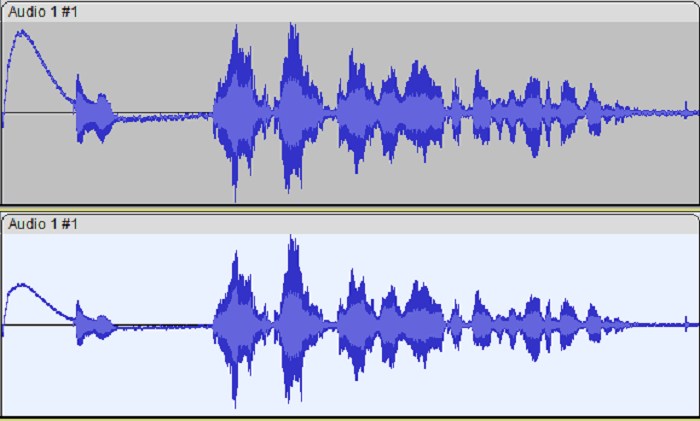
In the context of multitrack editing, noise reduction plays a crucial role in ensuring a consistent and high-quality audio experience across all tracks. Multitrack projects often involve the combination of various individual audio recordings, such as separate instrument tracks in music production or distinct vocal tracks in podcasting. Here’s a detailed exploration of how noise reduction fits into the broader landscape of multitrack editing, along with strategies to maintain consistency and optimize each track for superior sound quality:
Individual Track Optimization: Start by optimizing each individual track for noise reduction. Identify and address noise issues specific to each track, whether it’s background hum, hiss, or other unwanted artifacts. Use Audacity’s noise reduction tools on each track independently to achieve clean and clear audio.
Maintaining a Cohesive Noise Profile: When working with multiple tracks in the same project, strive to maintain a cohesive noise profile across all tracks. This involves using similar noise reduction settings and techniques to ensure that the tracks blend seamlessly together. Consistency in noise reduction helps prevent abrupt changes in audio quality between different elements of the project.
Grouping and Linking Tracks: Audacity allows users to group and link tracks, making it easier to apply changes uniformly across multiple tracks. Grouping tracks ensures that any edits, including noise reduction, are simultaneously applied to all linked tracks. This feature is valuable when dealing with multitrack projects, as it simplifies the process of maintaining consistency.
Create a Master Noise Profile: Consider creating a master noise profile using a section of audio that captures the collective noise characteristics of the entire project. Apply this master noise profile to each track, adjusting settings as needed for individual tracks. This approach helps maintain a unified noise reduction strategy.
Balancing Noise Reduction Intensity: While it’s essential to maintain consistency, be mindful of the fact that different tracks may have varying levels of noise or require different degrees of noise reduction. Adjust the intensity of noise reduction on each track to strike a balance between removing unwanted noise and preserving the natural character of the audio.
Utilizing Group Effects for Consistency: Audacity’s Group feature allows users to apply effects across all grouped tracks simultaneously. This is particularly useful for applying consistent noise reduction settings to multiple tracks. After grouping the tracks, navigate to “Tracks” > “Group” > “Edit Group…” and apply noise reduction or other effects.
Monitoring Overall Project Quality: Regularly monitor the overall project quality while editing individual tracks. Listen to the combined audio to ensure that the noise reduction applied to each track contributes positively to the overall mix. Make adjustments as needed to maintain a cohesive and high-quality audio production.
Advanced Noise Reduction Techniques: In multitrack editing, explore advanced noise reduction techniques, such as spectral editing or third-party plugins. These techniques can offer more targeted and sophisticated solutions for complex noise scenarios that may be present in individual tracks.
Considering Crossfade and Transitions: When editing multitrack projects, particularly in music production, pay attention to transitions between tracks. Use crossfades or other transition techniques to ensure smooth blending between tracks. This can help mask any residual noise or artifacts that may be present at track boundaries.
Exporting and Re-Importing Tracks: In some cases, exporting individual tracks, applying noise reduction in a separate Audacity project, and then re-importing the tracks back into the main project can provide more control over the noise reduction process. This approach allows for thorough optimization without affecting the original multitrack arrangement.
Related Posts:
Pandora vs Spotify 2022: Unveiling the Ultimate Music Streaming Showdown
Unlocking the Power of YouTube Podcasts: A Comprehensive Guide for Content Creators
Unlocking Luxury: The Ultimate Guide to Louis Vuitton AirPod Cases
FAQs – Addressing Common Queries
Can Audacity’s noise reduction completely eliminate all types of background noise? A: While Audacity’s noise reduction is powerful, complete elimination depends on factors like the type of noise and the quality of the original recording.
Does noise reduction affect the overall audio quality? A: When used correctly, noise reduction in Audacity can significantly improve audio quality. However, excessive reduction or improper settings may impact the overall sound.
Can I use Audacity noise reduction for live audio streaming? A: While Audacity is primarily an offline editing tool, you can use its noise reduction features to enhance pre-recorded segments for live streaming.
Are there alternative tools for noise reduction in Audacity? A: Yes, some third-party plugins and software can complement Audacity’s noise reduction capabilities, providing additional options for users.
How can I reduce background noise without affecting the main audio in Audacity? A: Utilize Audacity’s spectral editing features to precisely target and reduce specific frequencies associated with background noise, preserving the main audio.
In the realm of audio editing, Audacity’s noise reduction emerges as a formidable ally for creators striving for excellence. This guide has equipped you with the knowledge to harness the full potential of Audacity’s noise reduction tools, from basic setup to advanced techniques. As you embark on your audio editing journey, let this comprehensive resource be your companion, ensuring that every project resonates with clarity and brilliance. Master the art of Audacity noise reduction and elevate your audio creations to new heights.